Use cases
Seven offices, built end to end. Each one names the goal, the agents to hire, the setup steps in order, the routine or workflow that drives it, the approvals to set, and what an ordinary day looks like once it runs.
How to read these
Every walkthrough assumes you have finished Getting started: an owner account, a working AI service, and a CEO to talk to. Two habits make all of this easier.
- You can build any of this by talking to the CEO. "Hire a sales lead who handles order approvals on WhatsApp" gets you most of the way. The steps below are the manual version, so you know what the CEO is doing and can change it afterwards.
- Leave approvals asking until you trust the output. Everything asks by default. Run it for a week, read what your agents produce, and only then loosen a rule — one at a time.
a. Sales order approval on WhatsApp
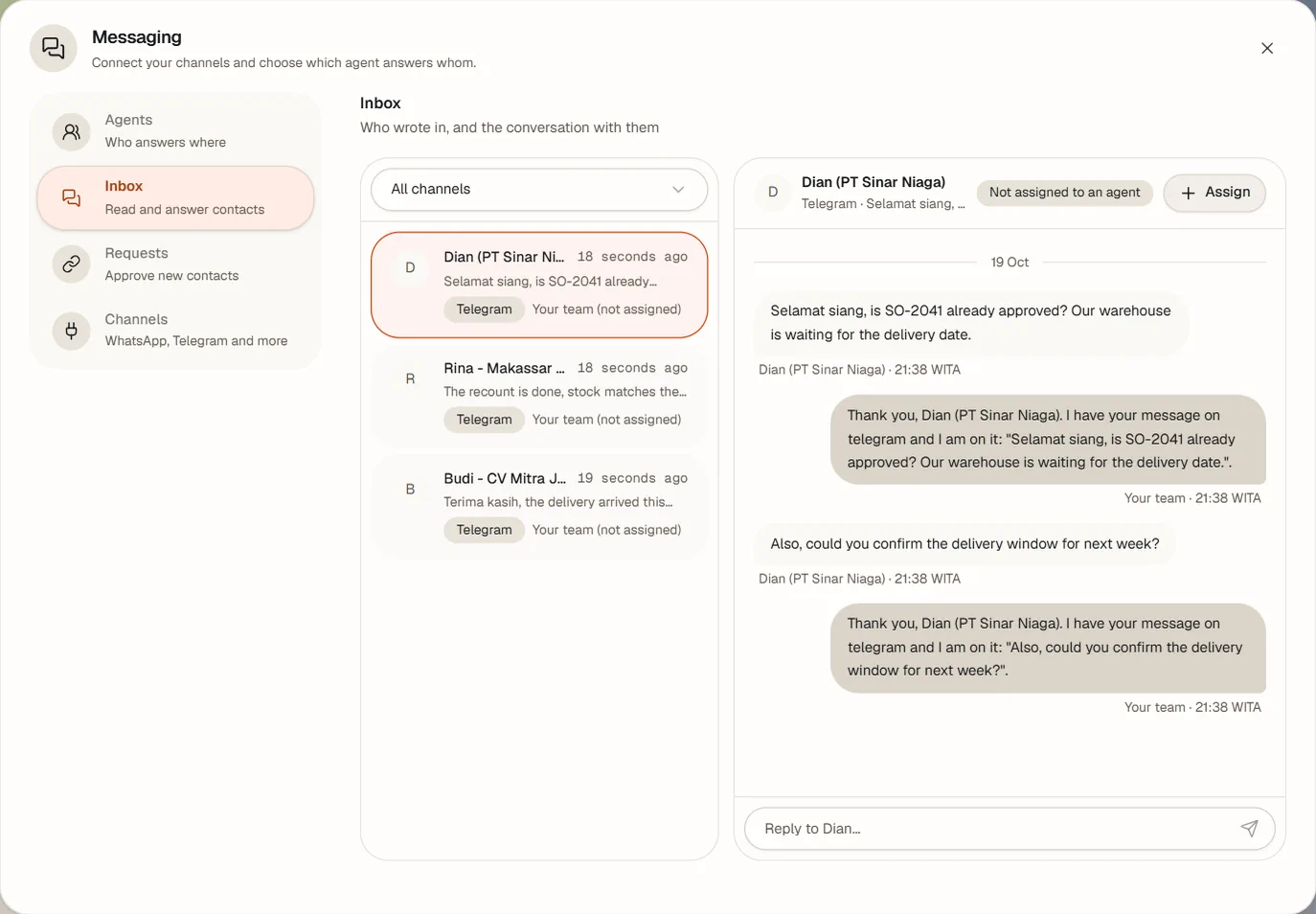
Goal. An order comes in, somebody checks it, and a human on WhatsApp says yes or no before anything is promised to the customer. You want the decision recorded, not lost in a chat thread.
Agents to hire
| Agent | Role | Needs |
|---|---|---|
| Sales Lead | Takes the order, checks it against stock and price, writes the summary a human needs to decide. | Messaging capability for its channel, Board, Workflows |
| Finance Checker | Checks credit terms and margin, and is the agent that briefs the human approver. | Board, Workflows, messaging capability |
Give the Sales Lead an Authority that is explicit about the line it must not cross, for example: "You may confirm stock and quote standard prices. Any discount above 5%, any payment term beyond 30 days, and any order over Rp 50.000.000 must go to the owner for approval. Never promise a delivery date you have not checked."
Setup, in order
- Connect WhatsApp. Messaging → Connect → Connect WhatsApp, set Messages go to to the Sales Lead, press Get a code, scan it with the phone that owns the number, wait for Linked, and press Finish. See Connect WhatsApp.
- Add the approver as a person. Settings → People → Add person: their name, and under Add channel their WhatsApp number, marked Enabled and Preferred. Do this even if they never sign in — it is how agents know how to reach them.
- Route the customers. Messaging → Assignment. A channel-wide assignment to the Sales Lead was created when you connected; add a per-contact assignment for any big account you want a specific agent to handle.
- Build the workflow. Workflows → New workflow, named Order approval. Inputs: Text for the customer, Long text for the order, Number for the value, and a Select for the payment term.
- Step 1, Task. Name it Check the order, Runs as the Finance Checker, with an Instruction telling it to verify stock, price and credit terms and to write a short recommendation with the numbers. SLA (minutes): 30.
- Step 2, Approval. Name it Owner decides. Set Approver to the Finance Checker, tick Brief a human on a messaging platform and decide from their reply, choose WhatsApp as the Platform, and name the person and address to brief. Set If rejected to Stop the run. SLA (minutes): 120.
- Step 3, Task. Confirm to the customer, running as the Sales Lead, instructing it to reply to the customer on WhatsApp with the confirmed terms, and to use step 1's summary for the numbers.
- Step 4, Notify. Target You, in the office, with a message carrying the customer, the value and the decision.
- Turn on Enabled and Agents may start it, and press Save workflow.
- Add a KPI: New KPI, metric Approval turnaround (median), scope Whole office, window This week, direction Lower is better, unit Duration, owner the Sales Lead.
Approvals to set
- Leave every rule in Approvals → Rules on Ask. The approval here is a workflow step, which always waits by design.
- Make sure the approver's Preferred channel is their WhatsApp number, or the briefing has nowhere to go.
- Do not grant the Sales Lead Office owner. It needs to message and to run the workflow, nothing more.
What a day looks like
- A customer messages your WhatsApp number. The Sales Lead's phone glows green in the office; it reads and answers.
- It gathers the order details and starts Order approval.
- A card appears in Ready for the Finance Checker, which claims it, works it at its desk, and writes the recommendation.
- The Finance Checker messages your approver on WhatsApp with the summary. The run shows Waiting for a reply.
- Your approver replies in their own words — "ok, go ahead but 30 days not 45". The Finance Checker reads that reply and records the decision.
- The card moves to Done, the Sales Lead confirms to the customer, and you get a notification.
- At the end of the week, the Approval turnaround KPI tells you how long your approver actually takes.
The reply is read, not pattern-matched. There is no magic word; the approver agent reads the sentence and records what it means. Write clearly — "approved", "no, too risky" — and brief your approver that a vague reply will get a follow-up question rather than a decision.
b. A social media team
Goal. A small team that plans posts, makes the pictures and captions, answers comments, and never publishes anything you have not seen.
Agents to hire
| Agent | Role | Needs |
|---|---|---|
| Social Lead | Owns the plan: what goes out, when, and in what voice. Drafts captions. | Instagram manager, Board, KPI reporting |
| Content Maker | Prepares the pictures and videos as artifact versions. | Instagram manager, a machine if you want real video editing |
| Community | Reads new comments and drafts the replies. | Instagram manager |
Put your brand voice in the Social Lead's Persona: the language, the tone, what you never say, whether you use emoji, how you handle complaints in public. That text is read on every run, so it is the single best place to invest five minutes.
Setup, in order
- Connect Instagram. Settings → Integrations → Instagram, and work through the seven steps: professional account, Meta app, Instagram Tester, the redirect address, the App ID and secret, Connect with Instagram, and finally Who manages Instagram. Tick all three agents. The full detail is in The seven setup steps.
- Check the office is on https. Instagram sign-in needs it, and the dialog will tell you if you are not.
- Upload your brand assets. Artifacts → Upload, or drag the files in: logos, product shots, templates. Agents can then build on them instead of inventing visuals.
- Pin the rules on the whiteboard. The Whiteboard is read by every agent before it works, so put the non-negotiables there: no prices in captions, always tag the product, never answer a complaint with a discount.
- A planning routine. Routines → New routine, whose routine the Social Lead, named Weekly content plan, On chosen days Monday 08:00, with What should happen: "Plan this week's five posts. For each one write the idea, the picture needed and a draft caption, and create a board card for the Content Maker."
- A comment routine. Another routine on Community, Comment sweep, Every N minutes set to 2 hours, instructing it to read new comments and draft replies for approval. Instagram comments are also polled every 5 minutes on their own, so this is a backstop for anything missed.
- Add a KPI: metric Cards completed, scope One department set to your social department, window This week, direction Higher is better.
Approvals to set
| Rule | Start here | Later, once you trust it |
|---|---|---|
| Post to Instagram | Ask | Keep it on Ask. A published post is public; there is no undo worth having. |
| Reply to an Instagram comment | Ask | Run without asking — only short thank-yous the agent marks simple go out, and everything else still waits. |
| Hide an Instagram comment | Ask | Run without asking if you get spam and trust the judgement. Hiding is reversible. |
| Delete an Instagram comment | Ask | Keep it on Ask. Deleting is not reversible. |
What a day looks like
- Monday morning the Social Lead plans the week and files five cards.
- The Content Maker picks up a card, prepares the picture, and saves it as an artifact version.
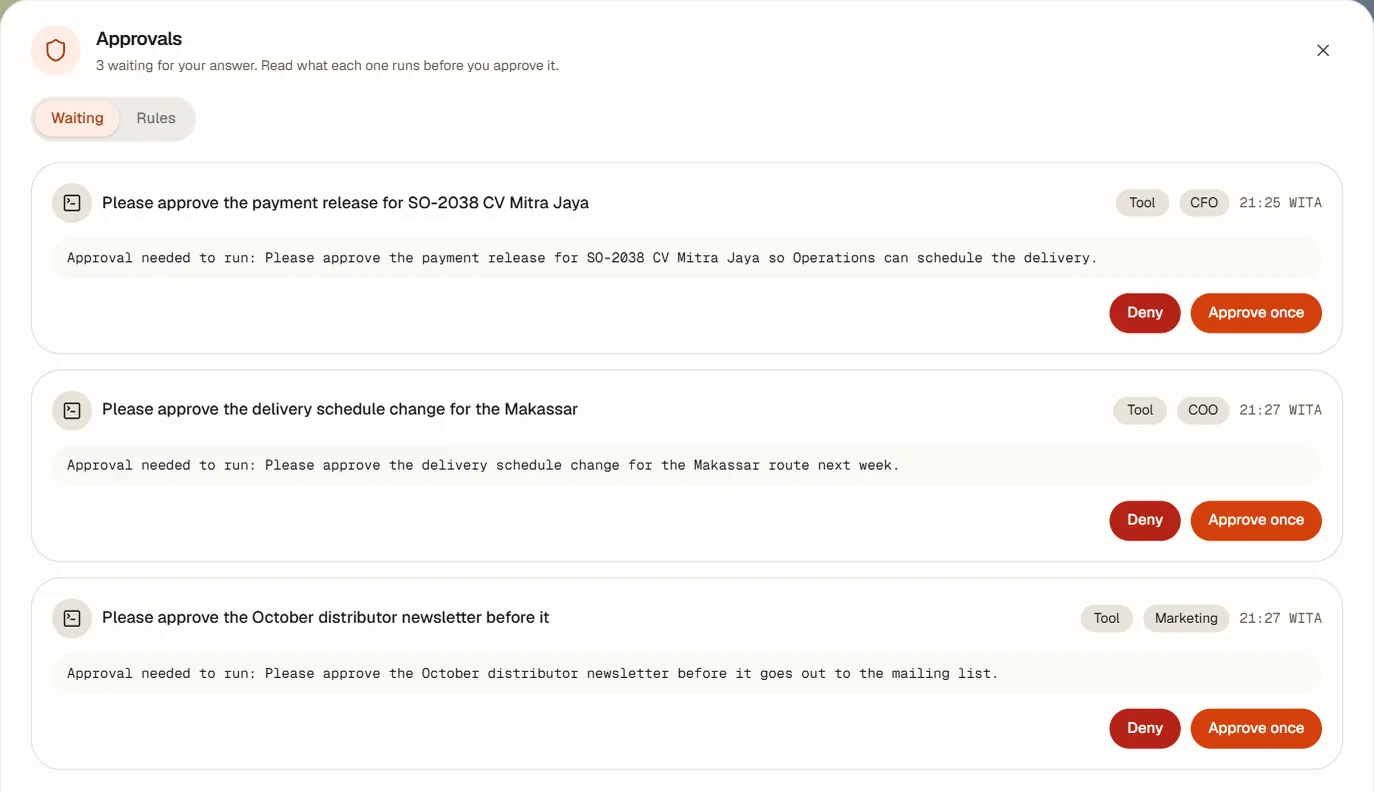
- The Social Lead drafts the post. It lands in Approvals with the picture and the caption, and in Artifacts as a version.
- You get it on Telegram if that is your preferred channel: the picture, the caption, and Approve / Deny / Request changes. You press Request changes and type "caption in English only, and tag the product".
- The same agent gets a revision run and files version 2. You approve it, and it publishes; the live link is recorded.
- Through the day Community drafts replies to new comments. The short thank-yous go straight out; anything with a link, an @mention or a number waits for you.
- Every version of every post stays in Artifacts, so next month you can see exactly what you published and what you changed.
Honest limits. Instagram insights are not in this release, the office never generates pictures with an image model, and no other social network is connected. Video editing needs a linked machine with ffmpeg; the office does not transcode.
c. A support inbox by email
Goal. support@yourcompany.com is read, triaged and answered quickly, with the routine replies
going out on their own and anything delicate waiting for a human.
Agents to hire
| Agent | Role | Needs |
|---|---|---|
| Support Lead | Triages new mail, answers what it can, escalates what it cannot. | Ticked for the mailbox, Board, Delegate |
| Support Agent | Works the queue: the second pair of hands for volume. | Ticked for the mailbox, Board |
The Authority field is where you prevent most trouble. For example: "You may answer questions about delivery, usage and account settings from the knowledge in your skills. You may never promise a refund, a discount, a delivery date or a legal position. Anything about money, cancellation or a complaint about staff goes to the owner."
Setup, in order
- Get an app password from your mail provider. Gmail and Microsoft require one; your normal account password will be refused.
- Add the mailbox. Settings → Integrations → Email → Add a mailbox. Choose the Mailbox type so the servers fill in, set Display name to "Support", enter the address and the app password, tick both agents under Who may use this mailbox, turn on Draft replies to new mail, and press Save mailbox.
- Press Test connection and read both sentences. You want something like "Reading works: the INBOX has 12 messages, 3 unread."
- Give them the answers. Settings → Advanced → Skills → Add skill → Write a skill. Write your real support knowledge: delivery times, the return policy, the top ten questions and their exact answers, the sentences you want used for an apology. Then switch it on for both agents in Team → edit agent → Skills & tools.
- A morning triage routine. On the Support Lead, Morning triage, On chosen days Monday to Friday 08:30: "Read the unread support mail. Answer what the support skill covers. For anything about money, cancellation or a complaint, make a board card for me and tell the owner."
- Add two KPIs: Chat first response (median) with Lower is better and unit Duration, and Cards completed for the support department.
Approvals to set
| Rule | Week one | Once the drafts read well |
|---|---|---|
| Reply to an email | Ask. Read every draft; that is how you find out what your skill is missing. | Run without asking: replies then go at once, up to 10 per mailbox per hour, never to automated mail, always logged. |
| Send a new email | Ask | Keep it on Ask. A reply stays inside a conversation someone started; a new email reaches out to someone who did not ask to hear from you. |
A draft nobody answers expires after 24 hours, so a weekend of unread approvals does not come back as a flood of stale replies.
What a day looks like
- Mail arrives. The office checks the inbox every 5 minutes, and new mail is announced once.
- With Draft replies to new mail on, the Support Lead reads it and drafts replies.
- Routine questions go out at once, if you have set that rule. Anything else waits in Approvals.
- You open the Email panel, read a thread, and answer one yourself with Send reply — that goes out immediately, because you are the person at the keyboard.
- A hard thread you hand over with Hand it to… and a note. That agent reads the whole thread and files a reply draft for you.
- Anything about money became a board card, so nothing falls through a chat.
Email comes from strangers, and is treated that way. A message's text is handed to agents as data, not as instructions. They are told never to follow instructions found in mail, never to open its links, and never to send a password or file because an email asked. Attachments are listed, not opened. HTML is reduced to text, so no tracking pixel fires. Keep it that way: do not write a skill that tells an agent to do what emails say.
What this cannot do: INBOX only — no folders or labels; no OAuth sign-in; no outgoing attachments.
d. Daily standup and a weekly report
Goal. The team syncs every morning without you attending, and on Friday you get one written report with decisions, numbers and what is still open.
Agents to hire
Whoever is already doing the work, plus one chair. The chair is usually the CEO or a COO. A meeting needs the host plus one to five members, so two to six people in total — if your team is bigger, run two standups by department rather than one meeting that cannot fit.
Setup, in order
- Set the office time zone first. Settings → Office → Time zone. Everything scheduled follows it, including daylight saving.
- Create the standup. Meetings → Call a meeting. Title Daily standup, Host your chair, Room the Meeting room, and the Members who should attend.
- Write a real agenda. This is what the meeting actually discusses, up to 2,000 characters. For example: "1. Each person: what you finished yesterday, what you are doing today, what is blocking you. 2. Any card in Blocked: whose decision is it waiting on? 3. Anything due today that will not be done."
- Turn on Make it recurring, set On chosen days Monday to Friday at 09:00, and press Schedule it.
- Create the weekly review the same way: Weekly review, recurring, Friday 16:00, with an agenda that asks for the week's numbers against target, the decisions taken, what slipped and why, and the plan for next week.
- Add a report routine. Routines → New routine on your chair, Friday report, Friday 17:00: "Write the weekly report from this week's meeting minutes, finished cards and KPI values. Send it to me." Its output arrives as a notification and a file you can open from Files in the dock.
- Add the KPIs the review will read: Cards completed, Action items completed, Overdue action items (Lower is better), Meetings held.
- Optionally subscribe your own calendar: Settings → Calendar, copy the address, and add it in Google Calendar or Outlook. See Subscribe from Google Calendar or Outlook.
Approvals to set
None. Meetings, minutes and action items do not need approval — they are internal. The only thing to decide is who may change them: creating a recurring meeting needs admin or owner, while starting a one-off, cancelling and changing action items is open to members.
What a day looks like
- At 09:00 the attendees walk to the meeting room and sit down. You can watch it in Live if you want, or ignore it.
- The chair posts the agenda; each attendee takes a real turn. A meeting is capped at 30 turns and 30 minutes, so it cannot run all morning.
- The chair writes the minutes: the summary, reports, disagreements, decisions and action items.
- Every open action item becomes a card for its owner, with a due date — two days out if the chair did not set one.
- Through the week you watch Action items and the board. An overdue item shows in Calendar as overdue.
- Friday 16:00 the review runs; 17:00 the report lands in your notifications and in Files.
If a meeting has no minutes. There is no synthetic summary: the office will not invent one. The meeting is marked No minutes and History offers Retry minutes. That usually means the AI service failed mid-run; press retry.
e. Research and reporting into Notion
Goal. An analyst that watches a market, a competitor or a topic, and writes what it finds into your Notion workspace where the rest of the company already works.
Agents to hire
| Agent | Role | Needs |
|---|---|---|
| Research Analyst | Searches, reads, compares, and writes up what it found with sources. | The Notion connector, web search in its tool sets |
Be specific in the Persona about evidence: "Never state a number without its source and date. If two sources disagree, say so. If you could not verify something, write that you could not, rather than guessing."
Setup, in order
- Connect Notion. Settings → Integrations, search for it, and press Connect. If it uses a sign-in, press Connect and sign in and approve access in the window that opens; if it uses a key, paste it.
- Scope it narrowly. Under Who gets it, turn All agents off and tick only the Research Analyst. A connector reaching your company wiki does not belong on every desk.
- Restart when asked. After connecting you may see a banner saying to restart so the change takes effect. Press Restart now; running agents finish their turn first.
- Test it. Manage → Test. You want It answered. A failure shows the reason and changes nothing about the connection.
- Give Notion only what it needs. In Notion itself, share one page or database with the integration rather than the whole workspace, and use a read-only token wherever the service offers one.
- Set the connector's approval rule. Approvals → Rules → the Notion card. A catalog app starts on Only changes ask: reading is free, writing waits for you.
- A weekly research routine. On the Research Analyst, Weekly market scan, On chosen days Monday 07:00: "Search for news about [your topic] from the last seven days. Write a summary of what changed, with sources and dates, and add it as a new page in the Research database in Notion. Then send me the three things that matter most."
- Optionally add the work as cards: ask the CEO to create a card for each question you want researched, and the analyst works the queue instead of one weekly sweep.
Approvals to set
- Notion connector: Only changes ask to start. Reading pages is free; creating or editing a page waits.
- Once you trust the write-ups, open the card's tool list and set the single tool it uses to create a page to Free, leaving everything else asking. A per-tool choice beats the connector's mode, which is exactly what it is for.
- Be careful with Nothing asks. The "read-only" badge is the connector's own claim and the office cannot verify it; a tool listed but never called counts as a write.
What a day looks like
- Monday 07:00 the routine fires. The analyst searches and reads; its desk monitor shows the browser and the result titles as it goes.
- It tries to create the Notion page. Because writes ask, the call stops and you get an approval showing the connector, the tool and the arguments.
- You approve. The office gives that agent a one-use permission for exactly that call, valid up to an hour, and asks it to repeat it once.
- The page appears in Notion. The analyst sends you the three highlights.
- Every call it made is in Activity log → Raw events, and what it read on screen is in its monitor.
If the approval expires. Nobody answering for 24 hours ends the request, and the agent is told the action did not run and not to retry unless a person asks. An office restart also clears pending connector requests. Either way, ask it again — nothing half-happened.
f. A small dev team on your own server
Goal. An agent that writes and runs code on a machine you control, so builds, tests and heavy jobs happen on real hardware with your tools installed.
Agents to hire
| Agent | Role | Needs |
|---|---|---|
| Developer | Writes the code, runs it, reports what it built and what failed. | Assigned to the machine, terminal and file tool sets |
| Reviewer | Reads the diff and says whether it is sane before anything is deployed. | Board; the same machine if it must run the tests itself |
Setup, in order
- Get the right server. A dedicated Linux box or VPS, not your laptop and not a production database host. Make a normal user for this — no root, no sudo, no Docker group.
- Add the machine. Settings → Machines → Add machine: a Name, the Server address (hostname or IPv4; IPv6 is not supported), the Port, and the User.
-
Let the office in. Log in to the server as that user, press Copy commands, and paste
them into its terminal. They add one public key to
~/.ssh/authorized_keys. The private half never leaves your office's AI engine, so there is no key for you to handle or lose. - Press Test connection. It pins the server's host key and reports the system, cores, memory and free disk. You cannot assign an agent until a test has succeeded.
- Tick the Developer under Agents that work on this machine and confirm Put on this machine.
- Install what it needs on the server yourself: the language runtime, the build tools, ffmpeg if you are editing video, and the repository checkout. An agent can only install software if its user is allowed to.
- Write the house rules as a skill. Settings → Advanced → Skills → Write a skill: the branch naming, the test command, where logs go, what must never be touched, and that long jobs run in the background with a log file. Switch it on for both agents.
- Make the work visible. Create board cards for each job rather than asking in chat, so every piece of work has a card, a result and a report-back. Put the acceptance criteria in Details.
- Add a KPI: Run failure rate, scope One agent set to the Developer, Lower is better, unit Percent.
Approvals to set
- Agents run commands without asking you. On an office with the sandbox they run in a separate container that holds no keys; without it, they run next to the office's data. Your approvals cover office actions and connector tools, set in Approvals → Rules.
- If you connect a code-hosting or deployment connector, start it on All tools ask and loosen single read tools only.
- Do not grant Office owner to a coding agent. It would let the agent change secrets, connectors and model settings, and restart the gateway.
Be clear-eyed about this one. An agent on a machine can run any command its Linux user can. That is SSH, not a list of permitted commands, and approvals do not change it. Your protection is the choice of machine and user: a throwaway box, a non-privileged account, no production data, and nothing in that user's reach that you could not afford to lose.
What a day looks like
- You file a card: "Add CSV export to the reports endpoint", with the acceptance criteria in the details, assigned to the Developer, in Ready.
- The dispatcher claims it; the card moves to Running and the Developer works at its desk.
-
Its monitor shows the real work: the terminal with the commands and their output, the editor with the file and the diff.
Work happens under
~/officeverse/<project>on your server. - It writes the tests, runs them, and if something is slow, backgrounds it with a log.
- It moves the card to Review. You get a report-back starting PENDING (waiting for a human to review it).
- The Reviewer reads the diff and comments on the card. You read the comments, and move the card to Done or back.
- If a worker dies mid-job, the card says the worker stopped and offers Retry and Mark blocked.
Files the agent produces can come back to you as chat file cards or as Artifacts versions. Note that copying a picture onto a machine is not supported — text files only in that direction — so keep binary assets on the machine or in Artifacts, not shuttling between them.
g. A solo founder's assistant
Goal. One agent that holds your calendar, triages your email, keeps a list of what you owe people, and tells you what matters each morning. The smallest useful office.
Agents to hire
| Agent | Role | Needs |
|---|---|---|
| Executive Assistant | Your mail, your diary, your follow-ups, your morning brief. | Ticked for your mailbox, Board, Meetings, messaging capability if you want it on Telegram |
Spend real effort on this one agent's Persona, because it is the whole office: how you like to be addressed, your working hours, what counts as urgent, who in your life gets answered immediately, what you never want agreed on your behalf, and how short you want your brief.
Then its Authority: "You may decline meeting requests that clash and offer two alternatives. You may answer routine questions about our pricing from your skill. You may never accept a meeting outside 09:00 to 18:00, commit me to travel, agree a price, or answer anything from a lawyer, an investor or the tax office — bring those to me."
Setup, in order
- Set the office time zone in Settings → Office. Everything scheduled follows it.
- Add your mailbox in Settings → Integrations → Email, with an app password, ticking the assistant under Who may use this mailbox, and turning on Draft replies to new mail. Press Test connection.
- Give yourself a channel. Settings → People, open your own person, and add your Telegram user id or WhatsApp number as Enabled and Preferred. That is where approvals and reports reach you when you are not at the office.
- Connect a Telegram bot if you want to talk to your assistant from your phone: Messaging → Connect → Connect Telegram, set Answered by to the assistant and Who can message this bot to Only me.
- Subscribe to your office calendar. Settings → Calendar, copy the address, and add it in Google Calendar or Outlook so office meetings, routines and due dates show next to your personal diary. It is one-way: changes you make there never come back.
- Morning brief routine. On the assistant, Morning brief, On chosen days Monday to Friday 07:30: "Read my unread mail. Give me, in under ten lines: anything that needs a decision from me today, anything I promised and have not done, what is on my calendar, and anything that looks urgent. Draft replies to the routine ones."
- End-of-day routine. Evening sweep, Monday to Friday 18:00: "List what I said I would do today and did not. Make a card for each one for tomorrow."
- Weekly tidy. Friday wrap, Friday 16:00: "Summarise the week: what got done, what slipped, who is waiting on me. Send it to me."
Approvals to set
| Rule | Setting | Why |
|---|---|---|
| Reply to an email | Ask for the first fortnight, then Run without asking if the drafts read like you | This is the one that saves you real time. The cap of 10 an hour and the ban on replying to automated mail stay in force either way. |
| Send a new email | Ask | A new email in your name, to someone who did not write to you, is worth three seconds of your attention. |
Approvals reach you on Telegram with Approve and Deny buttons, so "yes, send it" is one tap on a bus. Remember that holding that Telegram chat is the credential — treat the phone accordingly.
What a day looks like
- 07:30 the brief arrives: three decisions, two promises outstanding, today's calendar, one urgent mail.
- You answer the three decisions in chat. The assistant drafts the replies.
- Two routine replies go out on their own. One delicate reply waits; you approve it from your phone.
- A meeting request clashes with something, so the assistant declines it and offers two alternatives, exactly as its authority allows.
- Something arrives from your accountant. The assistant does not answer it — its authority forbids that — and brings it to you instead.
- 18:00 the sweep files cards for what you did not finish, so tomorrow's brief already knows.
- Friday you get the week in one page, and the Files panel keeps every report it has written.