Getting started
From an empty office to a working team. Each step names the exact buttons and fields you will see.
1. Sign in
Open your office address in a browser. Everyone who uses the office signs in with their own username and password; there is no anonymous access, not even on the same machine.
The very first visit: create the owner account
A brand-new office has no accounts, so it shows a setup form instead of a sign-in form. While the office is still being prepared you see Your office is getting ready with its progress steps (your office, the AI engine, add-ons, your team's agents). You can close the tab; setup carries on without you.
- When the form reads Create the owner account, fill in Your name (up to 60 characters).
- Choose a Username: 3 to 32 characters, letters, digits, dot, dash or underscore, starting with a letter or a digit. Case does not matter.
- Choose a Password of at least 10 characters (up to 200). There is no complexity rule; length is what matters.
- Press Create account.
You are signed in immediately, as the owner, and the setup form closes for good. The office starts in your browser's time zone; you can change it later in Settings → Office.
If you run the office yourself. On a non-loopback address the setup form also asks for proof that you are the operator: open I run this office myself and paste the Office API token your deployment was configured with. A hosted office uses a one-time welcome link instead, and then shows no token field at all. This stops a stranger who reaches the page first from claiming your office.
Signing in afterwards
- Enter your Username and Password. A wrong one answers "Wrong username or password" without saying which part was wrong.
- After 10 failed attempts within 15 minutes, further attempts for that username (and from that address) are refused for a while. A successful sign-in clears the count.
- One session per account. Signing in again, on any device, signs the older one out. The old device lands on the login page with a note naming the new device, for example "Chrome on Windows".
- A session lasts 30 days and is extended as you use it.
- Forgot your password? There is no self-service reset email. Ask the owner or an admin for a reset link (Settings → People). The link is valid for 24 hours, works once, and signs you in after you set the new password.
Behind the sign-in card you see the 3D building turning slowly. That backdrop reads nothing from the office: no names, no labels, nothing about your team is visible before you are signed in.
2. Connect your AI
Agents think through an AI service. A hosted office arrives with one already working, and the first time the owner signs in it shows a short Your AI models dialog with Open 9router (to add your own provider keys or model combinations) and Continue to my office.
If the office has no working AI yet, a Connect your AI wizard opens by itself for the owner or an admin. It will reappear every so often until the AI is connected or you dismiss it.
- Pick a provider. The cards are the live provider list, with Search providers above them. Popular providers come first, providers already configured next, and Other (OpenAI-compatible) last, for LM Studio, Ollama, vLLM or a company gateway. A card may be marked In use or Key set.
- Paste your API key. Fill API key, and for a custom provider also Base URL and Model. Leave Model empty to take the provider's default where one exists.
- Press Save and test. The wizard shows Testing the connection and sends one small real message through your key.
- On success, choose Talk to your CEO (the camera flies to the CEO's office and opens the chat) or Close.
- On failure you get the provider's own reason in plain words, with Change key or model and Test again.
The key is a password field, goes straight to your office's AI engine, is cleared from the browser the moment it is saved, and is never shown again — not in Settings, not in a log, not to an agent. Set up later closes the wizard for this browser session.
Until an AI is connected a banner in the top bar offers Connect, and a chat says to connect your AI first instead of starting a run that would fail. Nothing is lost; connect the AI and ask again.
3. The office tour
After the AI question is settled, a short guided tour starts. It dims the office and spotlights the real controls, one step at a time, with Back, Next, Skip tour and Finish on the last step.
Owners and admins get seven steps:
- Start with your CEO
- Build your team
- Follow the work
- Repeat work on a schedule
- Reach people where they are
- Your AI models
- Walk around
Members and viewers get the short version: start with your CEO, follow the work, walk around. Pressing Escape dismisses the tour without recording it, so it comes back next visit; Skip tour and Finish record it as done. To see it again any time, open the account menu at the top right and choose Replay office tour.
4. What you are looking at
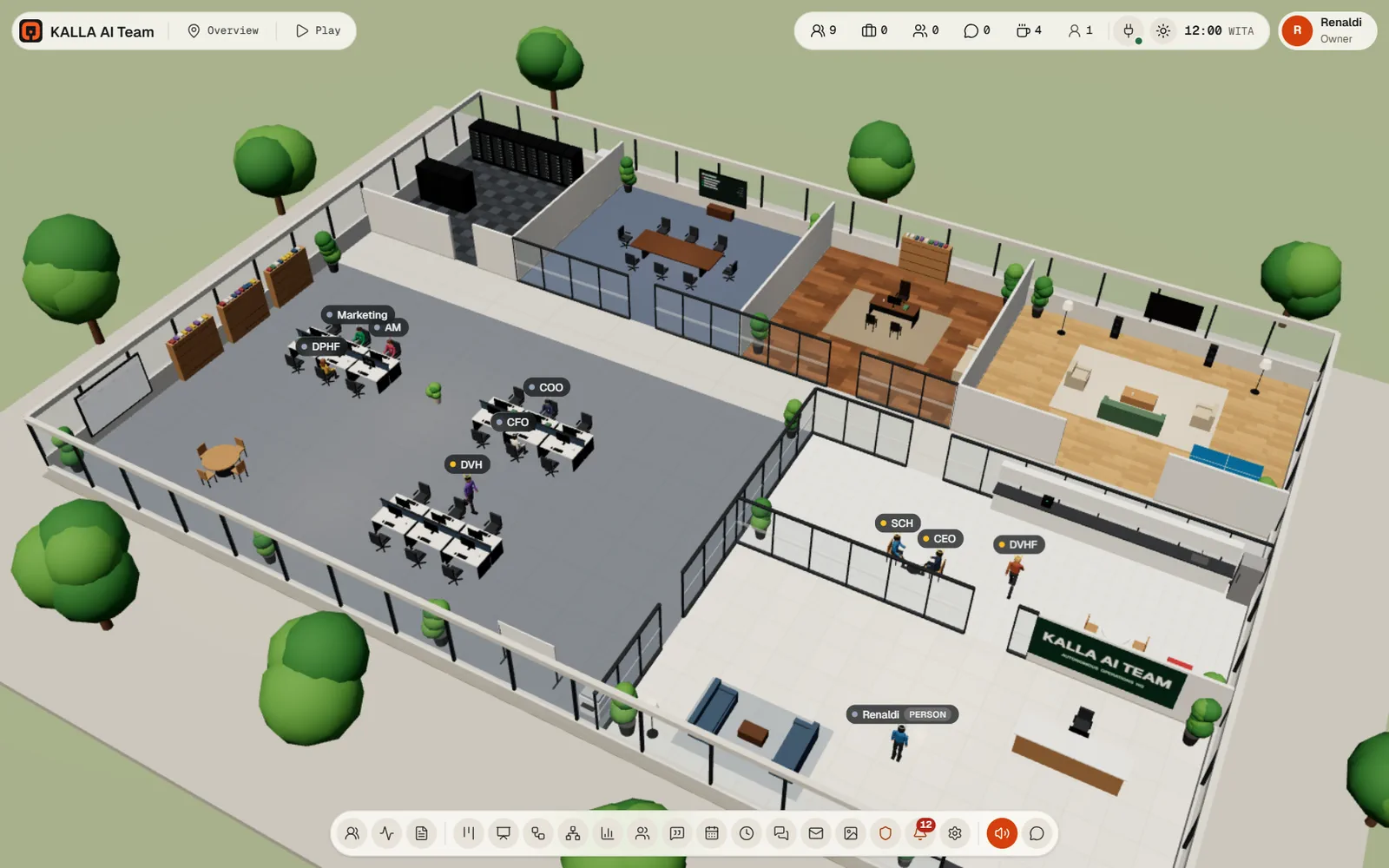
The 3D view
The office fills the page behind the controls; while it loads you see Building the office…. The lighting follows the real clock in the office time zone, from morning through night.
- Orbit: drag with the left mouse button.
- Pan: drag with the right or middle button, or hold Shift and drag.
- Zoom: the mouse wheel.
- Click an agent to select it and open the Inspector.
- Click an object (a desk, the TV, the printer) to open that object's menu: send someone there, seat someone, watch the TV, open the printouts.
- Jump to room in the top bar moves the camera: Overview, Lobby, Workspace, Meeting room, CEO office, Pantry, Lounge, Server room, Task board, Meeting TV, Lounge TV.
The top bar
On the left: the office name, Jump to room, and Play / Spectate. On the right:
- Live counts of everyone, and of who is working, in a meeting, talking or on a break. Each number opens the list behind it; picking a name selects and follows that person.
- People online: the humans signed in right now. While you are playing, each row offers Go to, which walks your character over.
- The connection state.
- Office clock: Auto follows the real time of day; Morning, Midday, Afternoon, Dusk and Night pin the lighting.
- Your account menu: My character, What's new, Replay office tour, Change password, Sign out.
A banner can appear under the bar when the office needs you: no AI connected, or storage nearly full with a Free up space button.
The dock
The dock along the bottom is the office's navigation. Pressing a tool opens its panel; pressing it again closes it. On a narrow screen the dock scrolls sideways. Its tools, in order:
Agents, Activity log, Files, Tasks, Whiteboard, Workflows, Team, KPIs, Meetings, Calendar, Routines, Messaging, Email, Approvals, Artifacts, Notifications, Settings, a sound toggle when voice is available, and Chat with an agent.
Messaging, Email and Settings appear for admins and the owner. Approvals appears for members and up.
Selecting an agent
Click a character, or a row in the Agents dock, and the Inspector opens on the right. It shows:
- Name, title, status, where it is, department and model.
- How many jobs are queued.
- Why: what it is doing right now and what caused it.
- Its last few Decisions.
- Current run: the model, the tool running, or what it is waiting for.
- Reporting line and Token usage for the current month.
- Actions: Chat, View monitor, New card, Follow, and for admins and the owner Edit and Suspend / Resume. Members can also send an agent for a Coffee break, to the Lounge, to the Kanban board or Back to desk.
Desk monitors
Every desk monitor draws its agent's real work: a terminal with the command and its output, a browser frame with the URL or the search and its result titles, an editor with the file and a diff. An agent that has run nothing shows a lock screen.
Select the agent and choose View monitor for the live feed, titled <agent>'s monitor. Each row is one tool call with its status, how long it took and a summary; expand a row for its Input and Output. Newest is at the bottom, and Jump to latest appears when you have scrolled up. With nothing running it says Nothing on the screen.
Secrets never reach the screen. Before anything is streamed to you, the office strips bearer tokens, basic-auth
values, credentials inside URLs, curl -u arguments, password and token command flags, secret-looking fields
and environment variables, and the common key formats, then caps the length.
5. Talk to your CEO
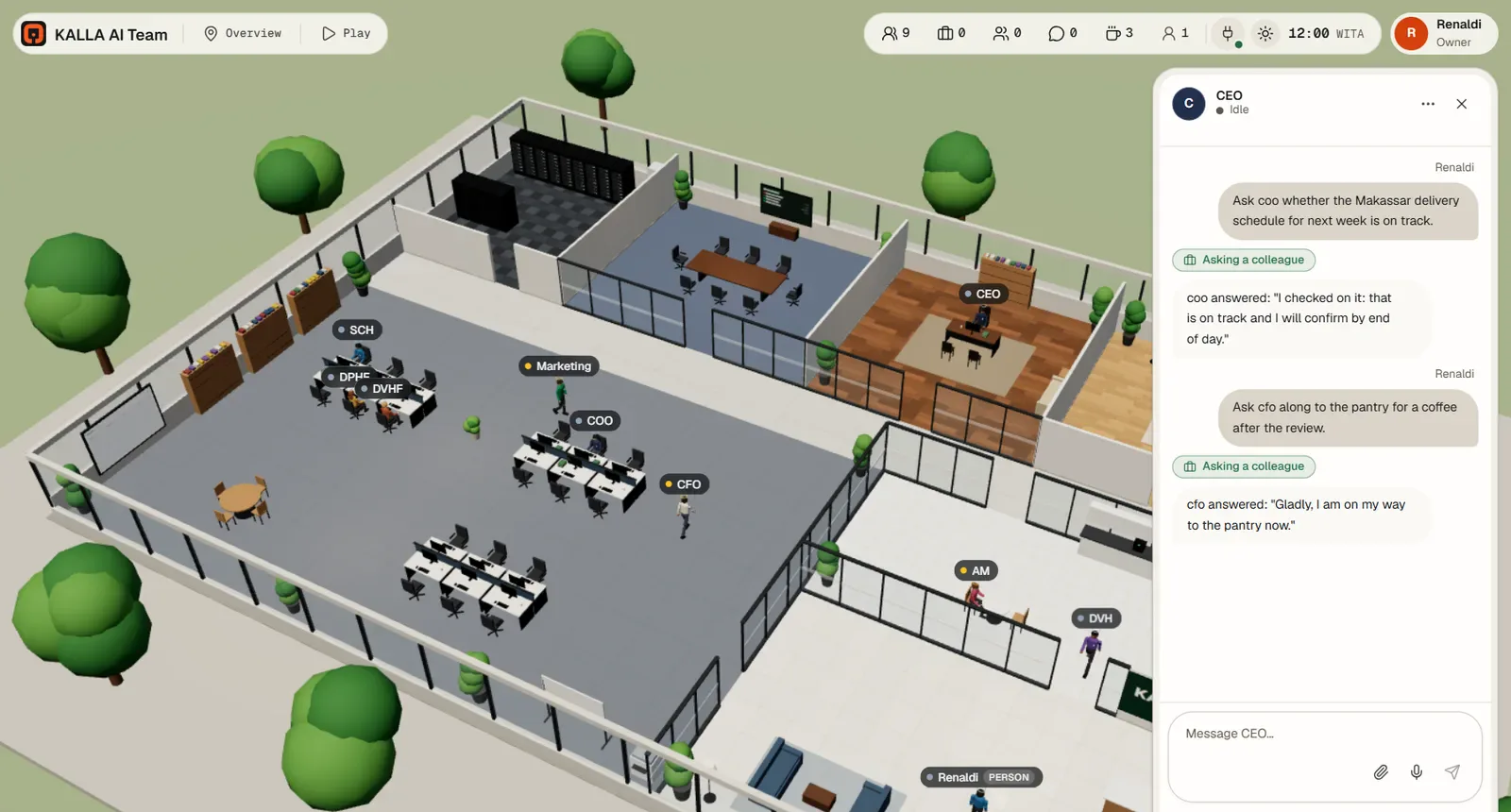
A new office has one agent: the CEO. Open its chat from the Inspector's Chat, by double-clicking it in the Agents dock, or from Chat with an agent in the dock. An empty CEO chat offers starter requests: build my team, weekly KPIs, an approval workflow, a morning routine.
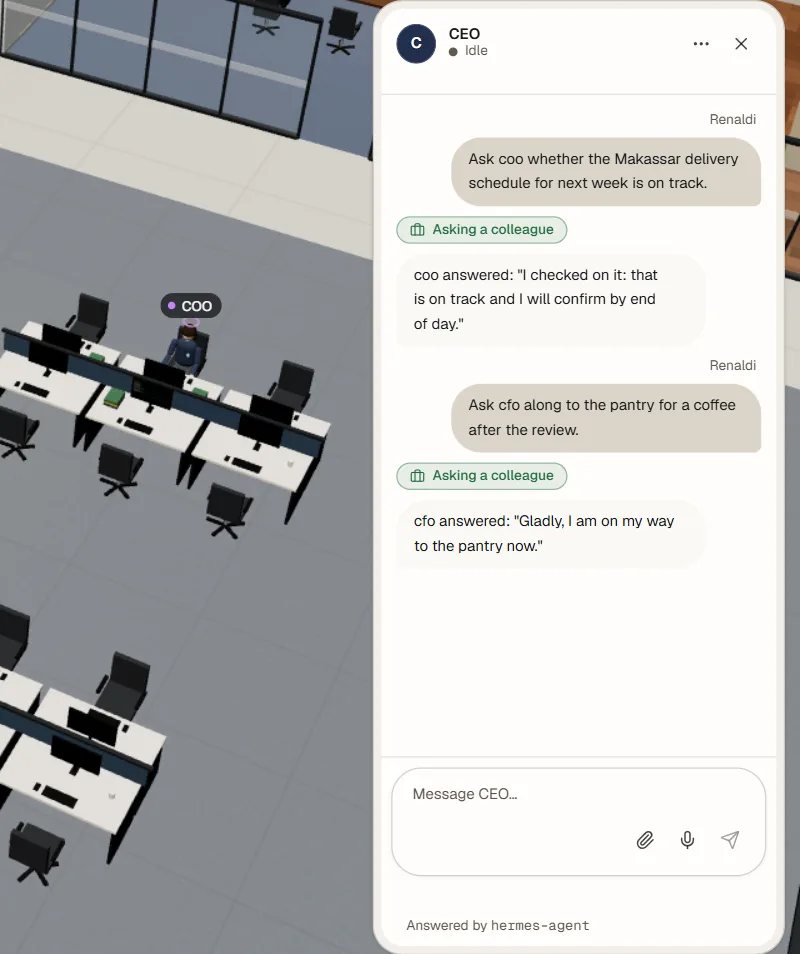
Describe your business in your own words. The CEO interviews you, then proposes and hires a team: names, titles, departments, reporting lines, roles, skills and desks. You can ask for changes in the same chat ("rename sales-lead to Account Lead"), or do it yourself in the Team panel.
In chat: type in Message, Enter sends, Shift+Enter adds a line. Up to 8,000 characters. Replies stream in while the agent turns to face you, and each tool it uses shows as a chip. See Chat and files for attachments and file cards.
6. Hire your first agent
You can let the CEO hire, or do it yourself: open the dock's Team panel (titled Organisation) and press Hire agent. A hire has four tabs; the Memory and Voice tabs appear only after the agent exists.
Profile
- Name (required, up to 60) and Title (required, up to 120).
- Department (required, up to 60): free text, with your existing departments suggested.
- Office id (optional): lowercase letters, digits and dashes, 2 to 32 characters. Leave it empty and one is derived from the name.
- Reports to: Nobody — top of the chart or another agent. An agent cannot report to itself or to one of its own reports. A top-level agent also gets Reports to (person), which defaults to you.
- Appearance: Shirt, Pants, Skin, Hair, Hair style (short, long, bun, buzz) and Height from 90% to 110%.
- Desk: only free desks are offered; a hire defaults to First free desk.
Role
- Persona (up to 4,000 characters): how it works, what it prioritises, how it writes.
- Authority (up to 500 characters): what it may decide alone, and when it must escalate.
These two build the agent's full role description, which is read on every chat, routine, card and meeting. After the hire you can read and edit that description directly under Role → Full role description — but note that pressing the main Save changes rebuilds it from the persona, authority, name, title and reporting line, replacing hand edits.
Model
- Model: leave it empty to use the office's work model. After the hire this becomes a searchable picker.
- Monthly tokens: a positive whole number, or empty for no cap. When an agent reaches its cap it refuses new runs and the office tells you. Usage is counted per calendar month in the office time zone and shown in the Inspector.
Skills & tools
- Office capabilities: what this agent may do inside the office — for example Delegate, Board, Workflows, Meetings, KPI reporting, KPIs, Office builder, Office owner. Messaging grants appear once you have channels configured.
- Starting skills: one switch per skill in your library.
- Advanced → tool sets: one switch per set, with the tools it contains listed.
Office owner is the heavy one. It lets an agent change secrets, connectors, model settings, platform credentials, restart the gateway and fire agents. No agent has it by default; only you can grant it, and an agent can never grant it to another agent.
Press Hire agent to finish. An office holds at most 19 agents: agents and people share 20 desks and one seat is always kept free, so a full office disables the button.
On a brand-new office the skill list may be empty until the first agent exists, because the library is read through an existing colleague's profile. Hire the first agent, then come back for skills.
7. Set the models
Open Settings → AI models. The office uses two tiers plus one fixed decision model.
- AI service picks the provider. Other providers (advanced) takes a Base URL for an OpenAI-compatible endpoint. Press Save provider.
- Conversation model: agent chat, short answers, escalation answers and meeting turns. Pick it from Choose a model, which has a Search models box and groups models by provider and family, showing the context window, tool and vision support, and how often you have used each one.
- Work model: board cards, routines, meeting minutes and memory writes. An agent's own model overrides this for its work; conversation always uses the office conversation model.
- Press Save models. Both must be set. Refresh models re-reads the catalogue (it is cached for a minute).
- Decision model is fixed for every office and cannot be changed. Agents use it to compare choices, rate something on a scale, or answer yes/no from evidence, and it returns probabilities and a confidence. Every answer is listed under Activity log → Decisions.
Underneath, a usage table covers the last 30 days with runs, tokens and estimated cost per model.
8. Walk the office
Press Play in the top bar, or P, to step in as your own character. Press it again to go back to spectating.
- Move: click the floor, or WASD or the arrow keys. Hold Shift to run.
- Talk to an agent: walk within a couple of metres and a Talk to <name> (E) prompt appears; E opens that chat.
- Nearby chat: press Enter and type. Your line shows as a bubble over your head and is heard only by people standing close. It is person-to-person talk: it is never stored and never sent to an agent. The last few lines stay visible for about ten seconds.
- Emotes: 1 waves, 2 is a thumbs up, 3 claps.
- Multiplayer: everyone signed in walks the same floor, live. After two quiet minutes a person shows as away.
The HUD reminds you of the keys. My character in the account menu sets your look and your desk. Waving at an agent who is free gets one short spoken line back, at most once a minute per person and agent, and never while the agent is busy.
9. Invite your colleagues
Open Settings → People.
- Press Add person and fill Display name (required, up to 60), Agents address them as (optional) and Language. You can add a Telegram user id or a WhatsApp number under Add channel, with a Label, an Enabled switch and a Preferred switch — the preferred channel is where approvals and reports reach them.
- Press Add person. They now exist for the agents to address, but cannot sign in yet.
- Open that person and go to Login and role. Enter a Username (same rules as yours), then either type an Initial password and press Create login, or leave it empty and press Create login and get a link.
- If you chose the link, press Copy and send it to them yourself. The office sends no email. It is valid 24 hours and works once.
- Use Change role to set Admin, Member or Viewer.
Later, the same place offers Reset password link, Sign out and Enable login / Disable login. Disabling signs that person out at once; re-enabling keeps their old password. You cannot disable or demote yourself. See People and roles for the full rules, including transferring ownership.
Where to go next
- Every feature, panel by panel.
- Use cases: pick the one closest to your business and follow it end to end.
- Approvals is worth reading early: it decides what your agents may do without asking you.