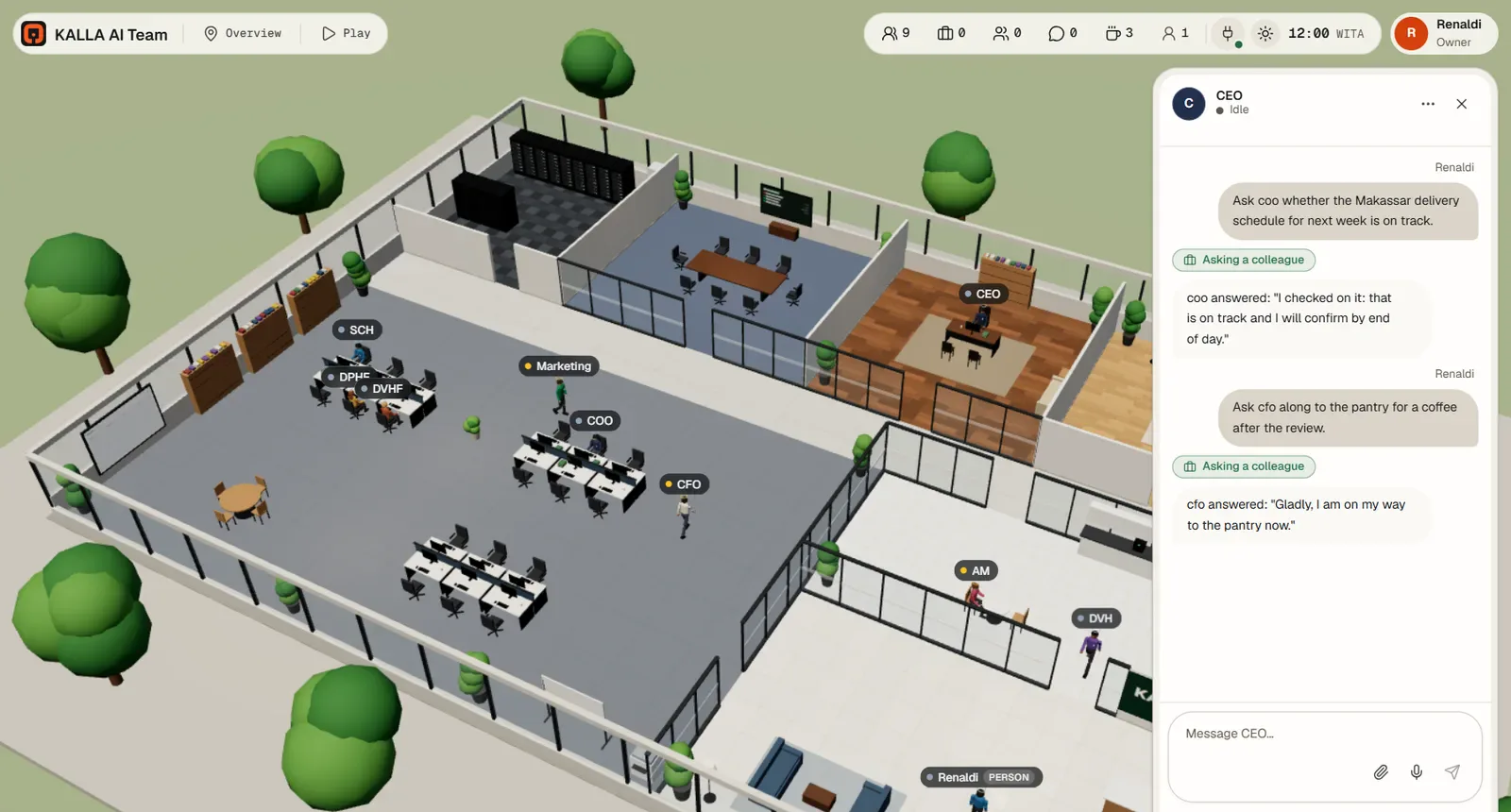
Every feature
One section per panel, with the exact names on screen, the real click paths, and the limits that actually apply. Where a thing is not built, this page says so instead of guessing.
Agents
An agent is one character at one desk. It has a profile, a role description, a model, a set of skills and tools, and its own memory. Agents are managed in the dock's Team panel and edited in a six-tab dialog.
Hire an agent
Team → Hire agent (owner and admins). The hire form shows four tabs: Profile, Role, Model, Skills & tools. The Memory and Voice tabs appear only on an existing agent, because they live on the agent's own profile. The full field list is in Getting started → Hire your first agent.
An office holds at most 19 agents. Agents and people share 20 desks and one seat is always kept free, so the panel shows a capacity counter and disables Hire agent when the office is full.
Edit an agent
Open it from the edit icon in Team, or select the agent and press Edit in the Inspector. The dialog is titled Edit <name>, with Suspend / Resume, Reprovision, Fire, Cancel and Save changes in the footer.
| Tab | What is in it |
|---|---|
| Profile | Name, title, department, office id, reporting line (Reports to, and for a top-level agent Reports to (person)), appearance and desk. |
| Role | Persona (up to 4,000 characters) and Authority (up to 500), plus Full role description with Save role description and Revert. The description is what the agent reads on every chat, routine, card and meeting. |
| Model | A searchable model picker with Save model and Revert; empty means the office work model. Budget → Monthly tokens. Advanced shows the profile id, provider and whether the profile is running. |
| Skills & tools |
Access first: a Full access switch (every tool, connector and channel, including
ones added later), on by default for your CEO. Switch it off and the per-capability and per-channel boxes appear,
already ticked, so you untick only what you want to take away. Then Enabled skills (n/total) split
into Built-in and Added with Search skills. Each switch saves at
once. The edit icon beside a skill opens this agent's own copy of its SKILL.md. Advanced
holds the tool sets.
|
| Memory | Notes it keeps, with Edit entry, Save entry, Forget entry, and Teach it something → Remember this. Knowledge graph draws the names it knows and the facts it saved. Advanced shows Memory used. |
| Voice | Voice: Silent — no voice or one of the provider's voices. With no provider it says No voice provider and points at Settings → Voice. Spoken lines play from the agent's position in the 3D office. |
One gotcha worth knowing. Pressing the main Save changes rebuilds the full role description from the persona, authority, name, title and reporting line. If you hand-edited the description, save it with Save role description and do not then press Save changes expecting your text to survive.
Memory has a budget: the agent's memory file holds about 2,200 characters and the profile's own memory file about 1,375. A full memory says Memory is full — forget an entry first. and the office refuses the write rather than silently dropping older facts.
The skill library
Skills live in one library and are switched on per agent. Settings → Advanced → Skills holds the library: Search skills, Add skill, and the Built-in and Added tabs. The library lists up to 512 skills.
Add skill offers two routes:
- Write a skill: Name (up to 64, lowercase letters, digits, dots, dashes and underscores), Description (one line, up to 60 characters) and SKILL.md (up to 99,000 characters). Write the body without front matter; the office writes the name and description headers for you. Press Save skill.
-
Install from a source: a hub identifier such as
anthropics/skills/pdf, or a directSKILL.mdURL. Press Install skill. A download is capped at 100 KB with a 15-second timeout; a hub install goes through your AI engine and can take up to two minutes. If the remote file carries no name, the dialog asks you for one.
Adding a skill to the library does not switch it on anywhere. Do that in Team → edit an agent → Skills & tools. A skill an agent wrote for itself is never switched off by the office's own sync.
Suspend, resume, fire
- Suspend <name>? → Suspend agent. It stops taking new work, runs and meetings. Nothing is deleted, and Resume puts it straight back to work.
- Fire <name>? asks you to type the agent's name, then Fire agent. Its profile, memory and routines are deleted, its direct reports move to its manager, and it leaves the 3D office. This cannot be undone, and the office refuses while the agent still has live work.
- Reprovision rebuilds the agent's underlying profile from what the office knows, for when something has drifted.
Chat and files
Open a chat from Chat with an agent in the dock, by double-clicking an agent in the Agents dock, from the Inspector's Chat, or in Play by pressing E next to the agent. The header carries the agent's status, View profile, Close chat, and for owners and admins Clear chat.
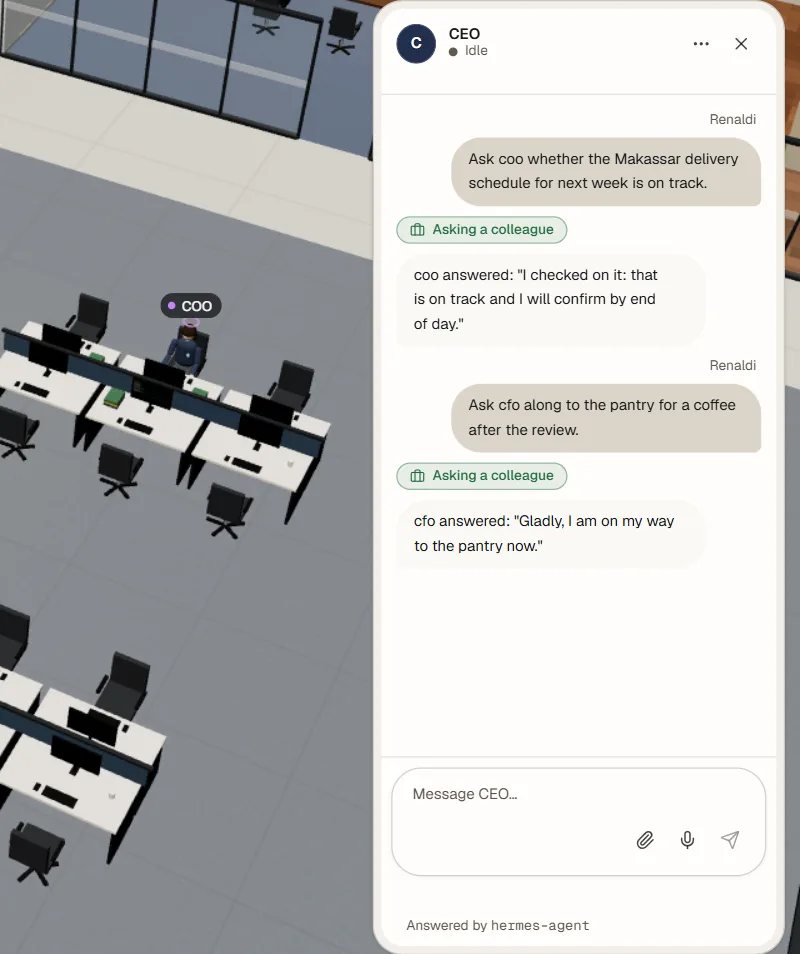
Threads are shared per agent: everyone sees the same conversation, each message shows who wrote it, and the agent is told who is asking and how to address them. A report an agent owes goes back to the person who asked for it.
- Type in Message; Enter sends, Shift+Enter adds a line; up to 8,000 characters. A viewer sees Viewers can read, not write.
- While the agent answers, the reply streams in, the agent turns to face you, and each tool call appears as a chip.
Sending files to an agent
Use the Attach files button, drag files onto the composer, or paste them from the clipboard.
- Up to 8 files per message.
- 25 MB per file, 100 MB for a video.
-
Allowed:
png,jpg,jpeg,webp,gif,xlsx,xls,csv,docx,pptx,pdf,txt,md,json,zip,mp4,webm. SVG and HTML are refused. - The bytes must match the extension, so a renamed executable is refused. Empty files are refused. Names are sanitised to 120 characters.
- Each file shows as a chip with a spinner, then its name and size, or the reason it was refused. Remove <filename> drops it. A message cannot be sent while an upload is still running.
On send, the file is copied into that agent's own workspace and the run is told where it is, so the agent really opens it: it reads CSV and text with its file tools, opens spreadsheets, documents and PDFs from its terminal, and looks at pictures with its vision tool.
Files the agent sends you
An agent writes a file into its outbox and sends it to the chat with a caption. You get a card: images show a thumbnail that opens full size with Download · <size>, videos get an inline player with a download icon, and everything else is a card with the file name, its size and Download <filename>. Files a board worker attached to a card arrive in its report-back message too.
Ask for "an Excel file of that data" and a real .xlsx arrives. Downloads require a signed-in session, are sent
as attachments with their stored type, and only images and videos are ever rendered inline. A file that was deleted leaves
a File deleted card with no download.
The office refuses to read anything outside that agent's own workspace, including paths that climb out of it, environment files, auth files, configuration, databases, sessions and token folders.
Clear chat
Owners and admins can clear a thread: chat options → Clear chat → confirm. It removes every message in that thread for everyone, and the files carried only by that thread. The agent's long-term memory is not touched. You cannot clear a thread while the agent is still answering.
Org chart
The dock's Team panel, titled Organisation, draws the team nested by reporting line, with the person above each top-level agent, a department legend with counts, and each agent's status, title, department, what it is doing and how many direct reports it has. A capacity counter reads <total> / <capacity> agents.
Clicking a row selects that agent and opens the Inspector. Owners and admins also get Hire agent and the edit and suspend controls. An empty office says Nobody works here yet.
People, roles and permissions
Settings → People holds the humans: their display name, how agents address them, their language, their messaging contacts, their appearance and desk, and their login and role. In the list, contact identifiers are masked; the real address shows only in the editor, to someone allowed to see it.
Add a person and a login
The steps are in Getting started → Invite your colleagues. A person can exist without a login: agents can then address them and send them things, but they cannot sign in.
Once a login exists, Login and role offers:
- Reset password link: a one-time link, valid 24 hours. A new link cancels the previous unused one. There is no email; you copy and send it.
- Sign out: ends that person's live session. They can sign in again.
- Disable login / Enable login: disabling signs them out at once; re-enabling keeps their old password.
- Change role: Admin, Member or Viewer. The status line can read No login yet, Login disabled or Waiting for the person to set a password with the link, along with their device and last sign-in.
What each role may do
| What | viewer | member | admin | owner |
|---|---|---|---|---|
| Read the office, agents, board, chat history, files, monitors | Yes | Yes | Yes | Yes |
| Chat, attach files, anything that starts an AI run from chat | No | Yes | Yes | Yes |
| Board cards: create, comment, move | No | Yes | Yes | Yes |
| Meetings: start, cancel, action items | No | Yes | Yes | Yes |
| Decide a workflow's human approval step | No | Yes | Yes | Yes |
| Lounge TV, sending agents to places | No | Yes | Yes | Yes |
| Hire, edit, suspend, fire agents; skills and memory | No | No | Yes | Yes |
| Settings, AI models, secrets, integrations, machines | No | No | Yes | Yes |
| Workflows, routines, KPIs, recurring meetings, whiteboard | No | No | Yes | Yes |
| People and logins | No | No | Yes | Yes |
| Answer tool, email, Instagram and connector approvals | No | No | Yes | Yes |
| Transfer ownership, buy storage | No | No | No | Yes |
Admins have deliberate limits: an admin cannot change the owner, cannot change another admin unless the owner does it, cannot make someone an admin, and cannot change their own role, disable their own login or remove themselves.
What each agent may reach
Roles above are for the humans. An agent's reach is its own switch, in Organisation → the agent → Skills & tools → Access.
| Setting | What the agent reaches |
|---|---|
| Full access (on) | Every office tool, every connected app and every channel — including ones you add later. A connector you set up next month reaches it with nothing to tick. This is how your CEO starts, so the agent that builds and runs the office never stops to ask you for a permission. You can switch it on for any other agent too. |
| Full access (off) | Exactly what is ticked on the agent. Switching it off reveals the per-tool and per-channel boxes already ticked, so you untick only what you want to take away; connected apps follow the list of agents on each app's own card. Every agent you hire starts here. |
Settings → Integrations and → MCP servers show a full-access agent as full access rather than a checkbox, with a link to that switch. Turning it on is the owner's alone: it covers owner-level operations and every channel at once, so an admin can narrow an agent but not widen one. No agent can give itself or a colleague full access, or any owner-level permission — its tools have no field for it.
Full access is about which tools exist for an agent, not about skipping your decisions. Everything your approval rules cover — connector writes, email, Instagram — still asks you first.
Transfer ownership and remove a person
Only the owner can transfer the office, and only to a person who already has an enabled login with a password: open that person, press Transfer ownership, type their exact name to confirm, and confirm again. They become owner, you become admin, and the page reloads with your new permissions. There is always exactly one owner.
Remove person also asks you to type the name. It removes the person and their login, and any agents that reported to them report to the owner instead. The owner cannot be removed; transfer the office first.
Tasks (the board)
The dock's Tasks panel is the office's kanban board: "Planned, ready, active and finished work. Drag a card between lanes or use its Move-to menu." Its lanes, in order, are Triage, To do, Scheduled, Ready, Running, Blocked, Review and Done. A time filter above the lanes offers Today, This week (the default), This month and Date range.
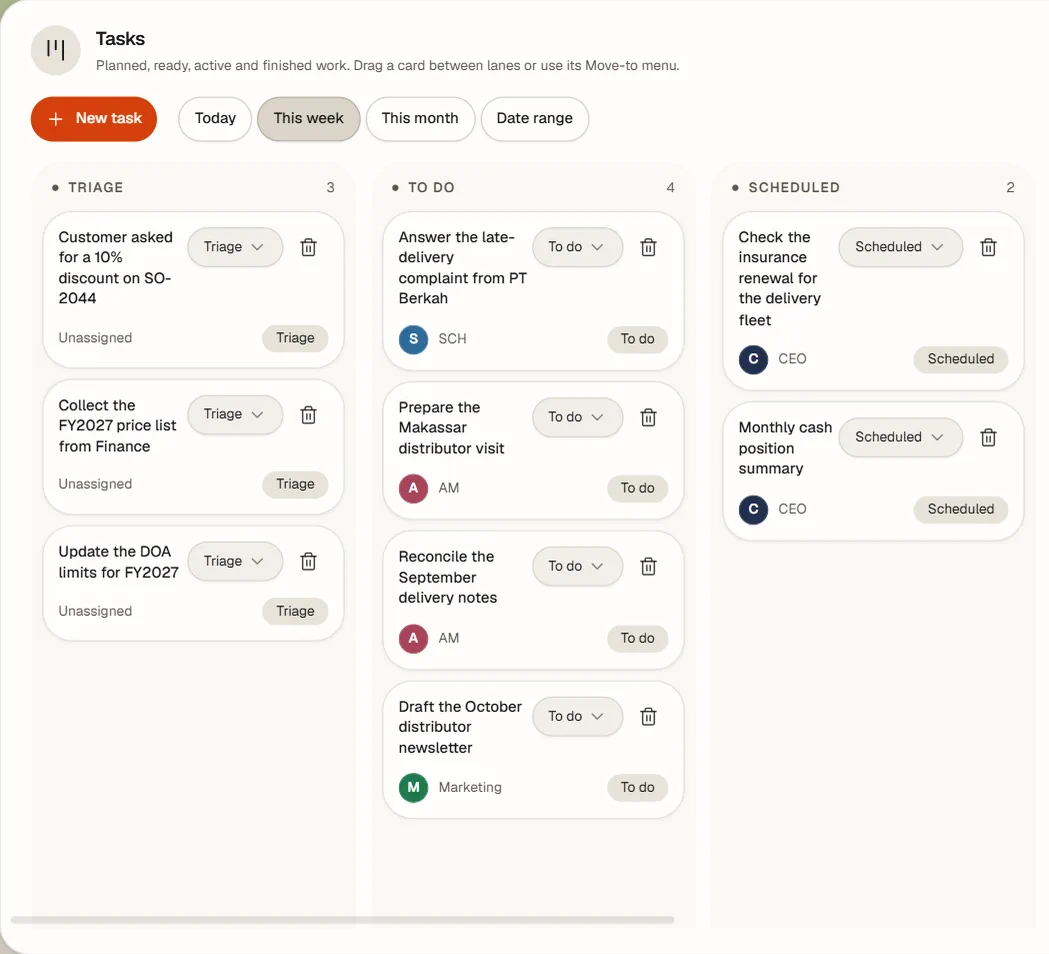
Create a card
- Press New task (an empty board says Create first task).
- Fill Title (required, up to 200), Details (up to 4,000), Assignee (optional, defaults to Unassigned), Lane (defaults to To do), Priority (0 to 5) and Skills (comma-separated, up to 16).
- Press Create card.
Choosing an assignee and the Ready lane warns you that the card is picked up as soon as it exists. That is the point of Ready: it is the lane that means "start this".
How a card gets done
Drag a card to another lane, or use its own lane menu. Running is not a lane you can drop into — the tooltip says your team picks these up by itself and to drop the card into Ready instead. When a card lands in Ready, the dispatcher claims it, moves it to Running, and the assignee works it at their desk; the card reads Working on it now.
If a worker disappears, the card says the worker stopped and offers Retry (release the claim and ask for a fresh start) and Mark blocked.
Card detail
Click a card, or focus it and press Enter, to open its detail with up to three tabs:
- Detail: the description, any block reason, and Result once it is finished.
- Comments: type up to 4,000 characters in Add a comment… and press Comment. Agent and human comments share one list.
- Technical details (owner and admins): the task id, the workflow run it belongs to, the worker's process id, its output and the delivery events, with Refresh.
You can move a card to Done, Blocked or Review yourself; the worker can also finish or block it. A finished card keeps the worker's summary and the evidence of what it ran.
Report-back
When a card finishes, the office starts a short run so somebody is actually told. The report opens with the outcome: SUCCEEDED for Done, FAILED (blocked, needs input or a decision) for Blocked, PENDING (waiting for a human to review it) for Review, and FAILED (the work stopped or crashed) for an attempt that died.
It goes to whoever asked for the work; failing that, to the worker's manager; failing that, to the owner. Work you asked for in chat comes back to that chat, with a notification and, if you have one set, your preferred outside channel. Sub-delegated work reports into its parent card and bubbles up. Workflow cards are excluded, because the workflow handles its own steps. A report is never sent twice.
Deleting a card needs admin or owner. Everything else above needs member and up; reading needs only a sign-in.
Routines
A routine is scheduled work owned by one agent. The dock's Routines panel lists them with their Schedule, Next run, Last result and an On switch, and each row expands to Prompt and run history with the prompt, where its output goes, the skills it loads, and what earlier runs produced. The same table, locked to one agent, is in the agent dialog's Routines tab.
Create a routine
- Press New routine.
- Choose Whose routine (required).
- Give it a Name (required).
-
Set the Schedule: Every day (default 09:00), On chosen days (default
Monday to Friday at 09:00), Every N minutes (minutes or hours, default 30 minutes, at most 31 days), or
Cron expression (default
0 9 * * 1-5). - Write What should happen (required): the instruction the agent will read each time.
- Choose Deliver the output to — by default back into the office.
- Optionally tick Skills to load.
- Press Create routine.
From a template opens Start from a blueprint: pick Whose routine, choose a blueprint card, fill its slots, and press Create routine. The blueprints and the available delivery targets come from your AI engine, so the list depends on your setup.
Running, pausing, timing
- The row switch pauses and resumes a routine.
- Run now asks Run "<name>" now? and runs it outside its schedule. It uses the AI model and lands in the run history. A routine already running will not start twice.
- A routine lives on one agent's profile and cannot be moved to another agent: "A cron job lives on one profile and cannot be moved." Create a new one instead.
- There is no per-routine time zone. Routines follow the office time zone (Settings → Office), including its daylight saving rules.
- The instruction the agent receives is capped at about 5,000 characters, including the extra instructions the office adds.
Creating, editing, deleting, pausing, resuming and running a routine needs admin or owner. Anyone signed in can read them.
Worth knowing. The editor accepts a six-field cron expression (with seconds) as well as the usual five. The Calendar's projection of future runs is built for five-field expressions, so a six-field routine may run correctly and still not be drawn as you expect in Calendar. If the calendar view matters to you, stay with five fields.
Meetings
The dock's Meetings panel has four tabs — Routines, Live, History and Action items — and one main button, Call a meeting.
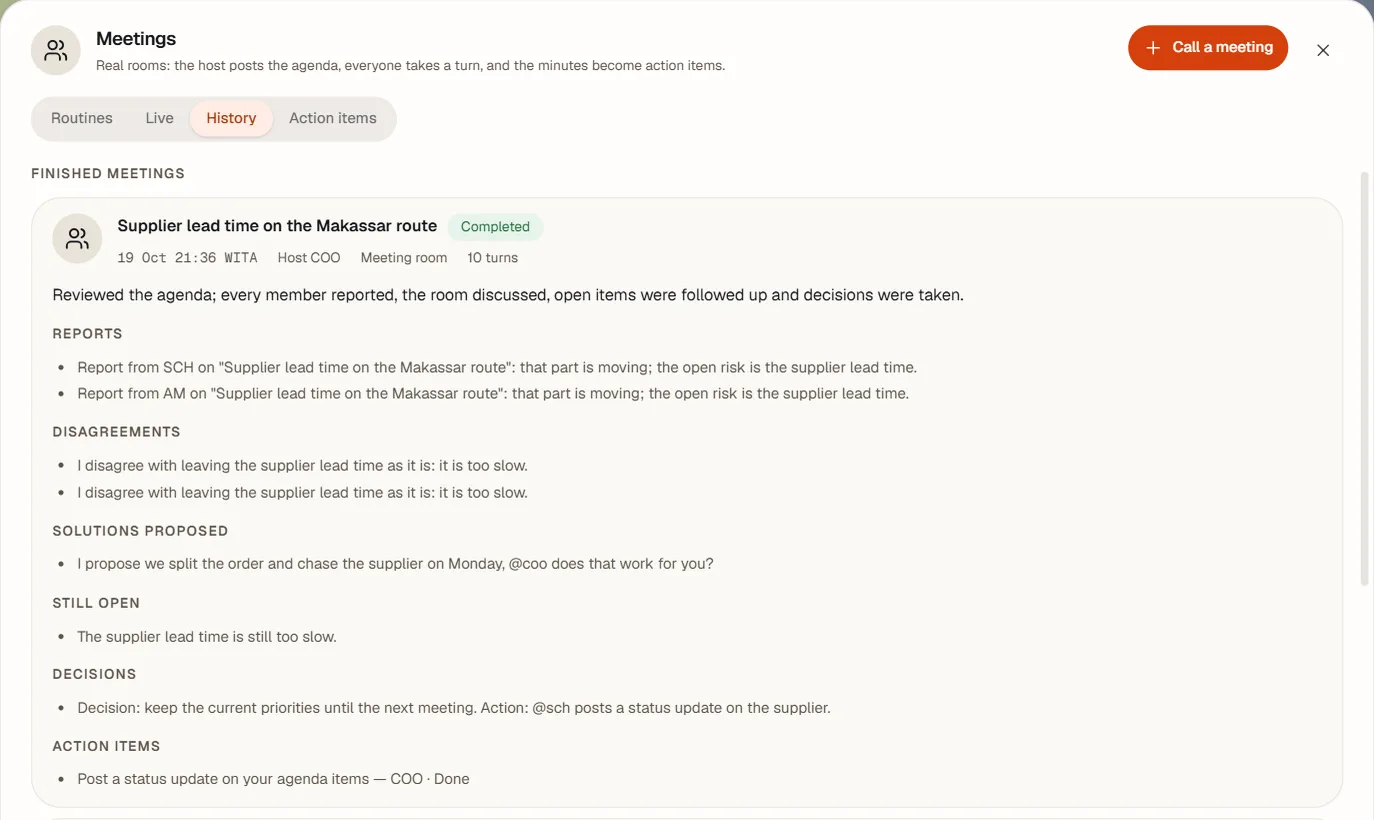
Meet now
- Press Call a meeting.
- Fill Title, choose a Host, a Room (Meeting room or CEO office), the Members, and the Agenda (up to 2,000 characters).
- Leave Opens at empty.
- Press Open the room.
The attendees walk to the room and sit down. The host chairs it: the agenda is posted, each attendee takes a real turn, and the host writes the minutes at the end. A meeting needs the host plus one to five members, so two to six people in total.
Book one for later, or make it recurring
- Set Opens at (office time zone) and press Book it. The meeting shows in Calendar as a Scheduled meeting; clicking it offers Edit or cancel, which opens Edit booked meeting with Save changes and Cancel meeting. The host of a booked meeting cannot be changed — cancel and rebook.
- Turn on Make it recurring (owner and admins), set the schedule with the same builder as Routines, and press Schedule it. The meeting then appears under Meetings → Routines, where the row offers Start now and Open routine; pausing, editing and history live in the Routines panel.
While it runs
The Live tab shows the agenda, who is attending, who is speaking, the transcript as it is written, and the progress through the phases: opening, reports, discussion, an optional follow-up on the last meeting, decisions and closing. Nobody advances the turns by hand.
Two limits keep a meeting from running away: it ends after 30 member turns if the chair has not closed it, and a whole meeting is capped at 30 minutes. The chair cannot close early if the required phases and participation are not done.
Minutes and action items
After the room closes, the host gets a real minutes-writing run. There is no fake fallback: if the host fails to file them, the meeting is marked No minutes and History offers Retry minutes.
Minutes can carry a summary, Reports, Disagreements, Solutions proposed, Follow-up on the last meeting, Still open, Decisions and Action items.
Every open action item becomes real work on the board for its owner. The Action items tab filters by status and owner and lets you set a status: open, in progress, done, blocked or cancelled. An item with no date given gets a due date two days after the meeting. Completing or blocking an item updates its card and tells the chair; cancelling archives the card. The panel keeps the last 30 finished meetings and 50 closed action items, plus everything still live or open.
Starting and cancelling meetings, retrying minutes and changing action items needs member and up; a recurring meeting needs admin or owner.
Workflows
A workflow is a sequence of steps with approvals and notifications built in. The dock's Workflows panel has Definitions and Runs tabs and a New workflow button; each definition card carries Enabled, Start and Edit.
Build one
- Press New workflow.
- Fill Name, Description, Enabled, Start by hand, Agents may start it and Run title.
- Under Inputs, press Input for each thing a run needs to be told. Types: Text, Number, Long text, Select.
- Under Steps, add Task, Approval and Notify steps in the order you want them, reordering with the move-up and move-down buttons.
- Press Save workflow.
Task step
Step id (unique, up to 40), Step name (required, up to 80), Runs as (This agent or The manager of), Agent, Instruction (up to 4,000), SLA (minutes), and optional conditions on the run's inputs or an earlier step's output. A task step becomes an assigned card in Ready, and its result can feed later steps.
Approval step
Approver: This agent, The manager of, or You, in the office. If rejected: Stop the run or Continue anyway. Plus Instruction and SLA (minutes).
Tick Brief a human on a messaging platform and decide from their reply to take the decision outside the office: choose the Platform, Who to brief and the Address to brief.
An office approval appears in Runs with an optional Note (optional), Approve and Reject. Rejecting asks for confirmation and, with Stop the run, ends the run.
Notify step
A message to You, in the office, This agent or The manager of, with variables from the run's inputs and earlier steps. Notifying you creates a notification and a log line; notifying an agent has it speak the message, and logs it. Notify steps have no SLA.
Start and watch a run
- On Definitions, press Start.
- The dialog Start <workflow name> asks for the inputs you defined.
- Press Start run. The panel switches to Runs.
Steps run in order, and a condition that is not met marks a step Skipped. Step chips show Running, Waiting for you, Waiting for a reply, Done, Approved, Rejected or Failed. An agent can start a run itself only when Agents may start it is on.
How a WhatsApp approval really works
This matters, because it is not keyword parsing:
- The approval step becomes a card in Review for the approver agent.
- That agent briefs the person you named, on the channel you chose, using its messaging tool.
- The agent blocks the card and waits. The run shows Waiting for a reply.
- The person replies in their own words on WhatsApp.
- The reply arrives in the agent's session; the agent looks up the pending step and records the person's decision.
- The office writes the decision, comments on the card, and moves it to Done for an approval or Blocked for a rejection.
So the reply is read by the approver agent, not matched against a magic word. There is no "reply APPROVE" grammar; a clear sentence is what it needs. Creating, editing, starting and cancelling workflows needs admin or owner; deciding an office approval step needs member and up.
KPIs
The dock's KPIs panel shows one card per number, with its current value, target, direction, status, window, source and owner. A status reads On track, At risk, Off track or No data yet.
Create a KPI
Press New KPI and fill:
- Name, Description.
- Metric: what is being counted (below).
- Scope: Whole office, One department or One agent.
- Window: Today (from midnight, office time), This week (from Monday) or This month.
- Direction: Higher is better or Lower is better.
- Target: zero or more. Unit: Count, Duration, Percent, Tokens, Rupiah or Plain number.
- Owner: the agent answerable for it. The agent is told it owns this number.
- Workflow filter, for the two workflow metrics only.
Press Create KPI.
What can be measured
These are computed from what really happened in the office, with no one to remind:
Chat first response (median), Run failure rate, Tokens used, Workflow runs completed, Workflow SLA breaches, Approval turnaround (median), Action items completed, Meeting attendance, Cards completed, Card cycle time (median), Overdue action items, Meetings held.
The one manual metric is Reported. For it, an admin or owner can press Report value, type a New value and press Save value, or turn on Collect it with a routine with its own Schedule and What to collect, and press Collect now to run it immediately. The collector runs on the owning agent, which must be inside the KPI's scope and have the KPI-reporting capability.
Numbers recompute shortly after the events that change them, and windows roll over on their own. Office-wide KPIs can be shown on the office TV as a scoreboard of up to 12 rows, unless a meeting is using the TV.
No long-term history. A KPI holds its current value for the current window. The little trend line is only what your own browser tab has seen since you opened it, and it resets when you reload. For history, keep the number in a report or an artifact.
Creating, editing, deleting, reporting a value and running a collector needs admin or owner. Reading needs a sign-in.
Calendar
The dock's Calendar panel draws Month and Week views in the office time zone, with Today, Previous, Next and Call a meeting. Owners and admins also get Google & Outlook, which jumps to Settings → Calendar.
Every event is labelled with where it came from:
| Label | What it is |
|---|---|
| Meeting | A room that really ran, from its start to its end. |
| Scheduled meeting | A meeting booked for later, or a recurring one. Drawn dashed. |
| Routine | Future runs from the schedule, plus the one last run on record. |
| Action item due | An open, in-progress or blocked action item at its due time; after the time it reads as overdue. |
Paused routines are left out, and so is anything that fires more than 24 times a day — a calendar of a two-minute routine would be unreadable. Calendar is a projection: the panel, the agents' own calendar tool and the subscription feed all read the same events.
Calling a meeting from the calendar
The header's Call a meeting pre-fills Opens at with the next hour. The + in a month cell opens the form at 09:00 that day; in a week view, at the hour you pressed. From there it is the ordinary meeting form: empty Opens at opens the room now, a future time books it, and Make it recurring turns it into a schedule. An event's detail can offer Open in Meetings, Edit or cancel or Open the routine.
Subscribe from Google Calendar or Outlook
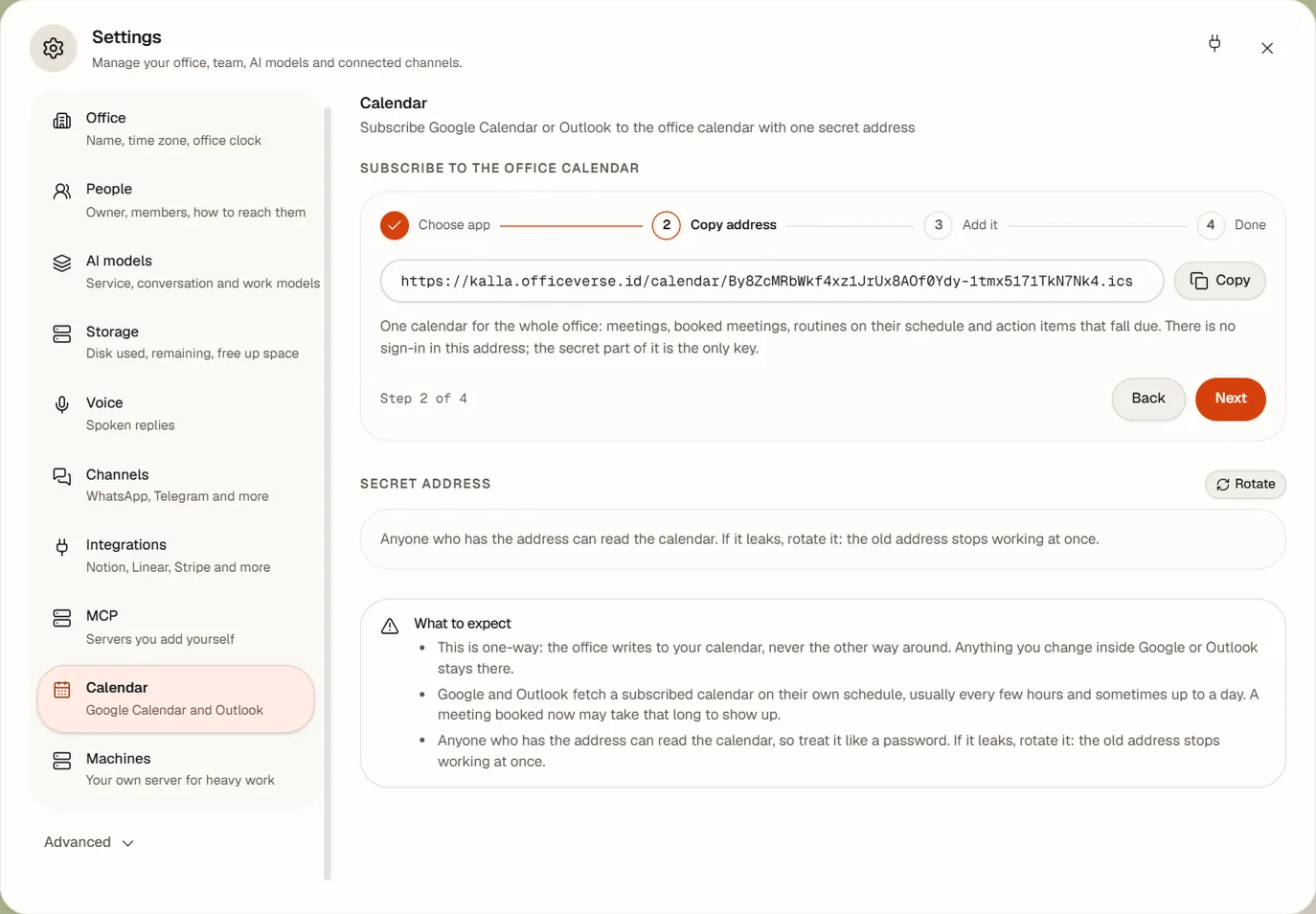
Open Settings → Calendar ("Google Calendar and Outlook") and copy the Subscribe address.
Google Calendar (on a computer):
- Open Google Calendar.
- Next to Other calendars, press +.
- Choose From URL.
- Paste the address.
- Press Add calendar.
Outlook on the web:
- Open Calendar.
- Press Add calendar.
- Choose Subscribe from web.
- Paste the address, name the calendar, press Import.
That address is a password. Anyone who has it can read your office's calendar without signing in. Treat it as a secret, and press Rotate if it leaks: the old address stops working immediately.
- The feed is one-way. The office publishes; changes you make in Google or Outlook never come back.
- Google and Outlook refresh on their own schedule, usually every few hours and sometimes up to a day. A meeting you just booked will not appear there instantly.
- Google and Outlook must be able to reach your office, so the feed needs a public HTTPS office address.
- A wrong or malformed address returns a plain "not found", and the feed is never cached.
Seeing and rotating the address needs admin or owner.
Artifacts
The dock's Artifacts panel holds "Pictures, carousels, captions and documents your team makes, kept as versions." Kinds are Picture, Carousel, Video, Document and Text; statuses are Draft, In review, Changes requested, Approved, Published and Archived. Filters: Search title, tag or note, All kinds, All statuses, All agents.
- Where files come from: an owner or admin presses Upload or drops files on the panel, or an agent saves its own output as a new artifact or a New version of an existing one.
- Open one and the detail shows its title, kind, status, agent and Versions. Pick a version, then use Open the large view for a picture, the player for a video, or Download. A text-only version downloads as a Markdown file.
- Owners and admins also get New version, Archive / Unarchive, Delete and deleting a single old version. An artifact always keeps at least one version.
How the status moves. A new artifact is a draft. Asking for approval puts it in review. Approving marks it approved; publishing marks it published and keeps the live link where there is one. Denying or letting it time out returns it to draft with the feedback attached. Request changes sets changes requested, keeps your note on the version, and gives the same agent a run to make the next version. Adding a version returns the artifact to draft. Archiving hides it; unarchiving restores its previous status.
Limits. Title 120 characters; up to 12 tags of 40 characters; a version note or feedback 500 characters; text 20,000; up to 10 files per version. Pictures are kept exactly as given, with one small thumbnail made for the card. The panel shows how much space each artifact uses and the office total against your plan; an upload is refused before a single byte is written when you are at the limit, with a clear message to delete old versions or upgrade. Archived artifacts still use their space until they are deleted.
Reading and downloading needs a sign-in; uploading, adding a version, archiving and deleting need admin or owner. Agents write through their own artifact tool, not the browser routes.
Honest gap. The browser's upload takes the files themselves but has no title, tag or note fields, and the detail view has no rename control. Titles and tags come from how the artifact was created.
Activity log and decisions
The dock's Activity log opens a drawer with three tabs and a Live or Offline marker.
- Office: the newest 80 entries in plain words, with the office time and what kind of thing it was — work, KPI, meeting, workflow, decision, conversation, tool, channel, board, organisation, error, person. A row tied to an agent selects that agent when clicked.
- Decisions: the newest 80 decision-model answers, each with its time, the answer, who asked (You for your own), and a marker when the model's confidence says a person should decide instead.
- Raw events: the underlying event stream, filtered by All, Work, Board, Messages or Waiting, up to 120 rows. Each row has a time, a summary, the agent and a short delivery id you can click to copy in full.
A decision opens to show what the model was given and, per question, its answer, its confidence and the probability of each option, with the question type (Choice, Score or Yes / no), the Model, Provider, Took and Cost. A low confidence is the agent's cue to ask a person rather than guess. The office keeps the newest 200 decisions; an older one says Decision not found and explains why.
All three tabs are readable by anyone signed in. Asking the decision model yourself needs chat permission, so member and up.
Messaging: WhatsApp and Telegram
The dock's Messaging panel (admin and owner) is where the office meets WhatsApp and Telegram: "Connect your channels and choose which agent answers whom." It has six sections:
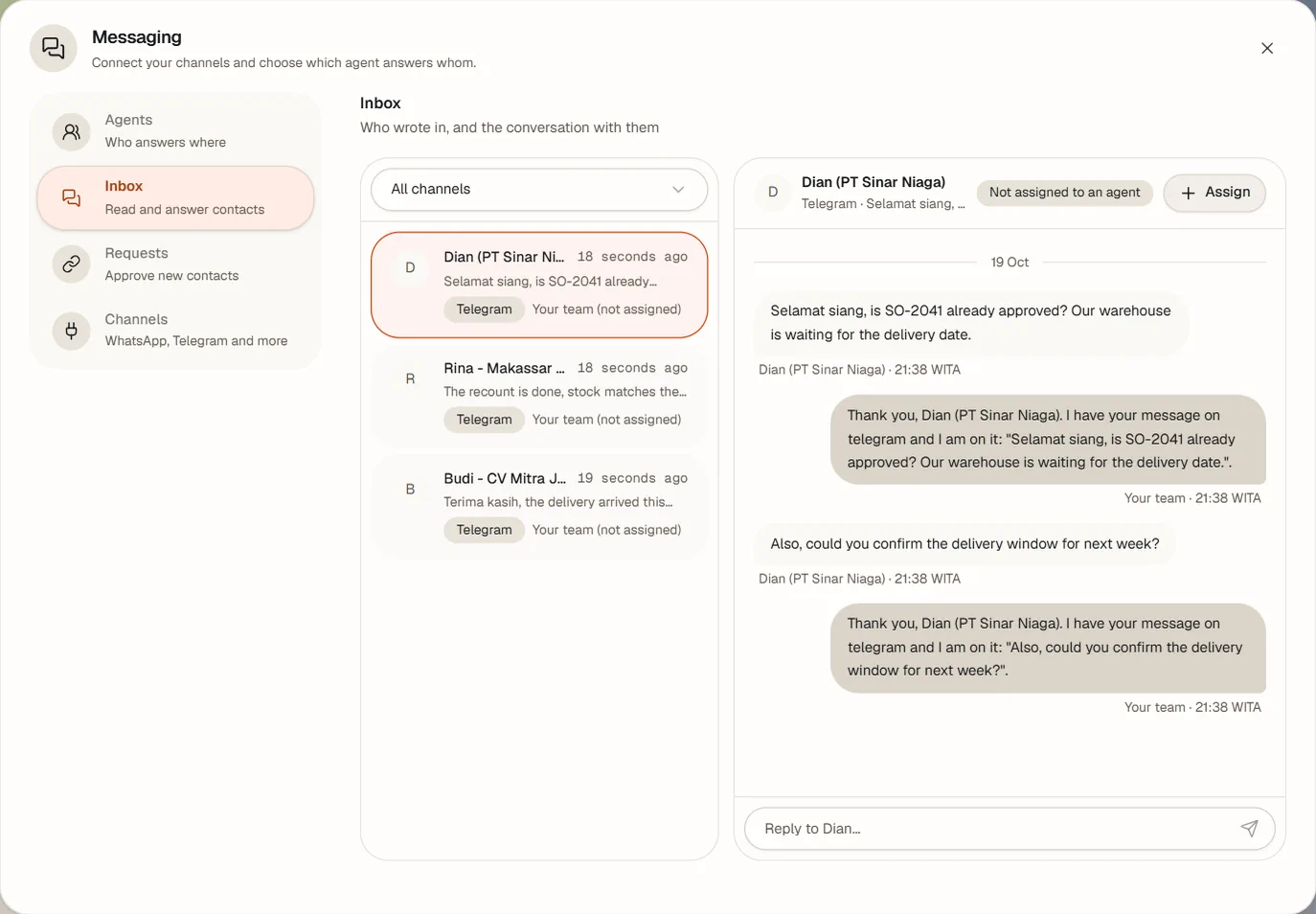
| Section | What it is for |
|---|---|
| Inbox | Read and answer contacts. |
| Test message | Try it without a phone. |
| Channels | WhatsApp, Telegram and more. |
| Connect | Link a phone or a bot. |
| Requests | Approve new contacts. |
| Assignment | Which agent answers whom. |
Settings → Channels is a shortcut: it only holds Open Messaging.
Connect WhatsApp
- Open Messaging → Connect.
- On the WhatsApp card, press Connect WhatsApp.
- Choose Messages go to — the agent that answers. It defaults to your CEO.
- Press Get a code. The status reads Getting your code ready…, then Scan this with the phone that will answer.
- On the phone whose number this is, open WhatsApp → linked devices → link a device, and scan the Pairing QR code. The dialog checks every couple of seconds and turns to Linked by itself.
-
Optionally fill Allowed numbers: a comma-separated list such as
628123456789, 628987654321. Leave it empty and anyone who writes to that number gets an answer. - Leave Safe sending on unless you have a reason not to. It is on by default and explained below.
- Press Finish.
If the code runs out before you scan it, the dialog says The code expired — start again; ask for a new one. A failure reads Pairing failed. Connecting creates a channel-wide assignment to the agent you chose, unless you already have one.
Safe sending
WhatsApp blocks numbers that behave like software: answering the same second, ticking every message read at once, and sending a lot from a number that was linked an hour ago. Safe sending makes your office write like a person instead. It is on by default, and you can see it in Messaging → Channels → WhatsApp → Settings.
- The first days are the careful ones. A number linked today sends slowly, with a small hourly limit. After a day it speeds up, and after three days it runs at its normal pace.
- Pauses between messages. Replies leave with a gap and a little randomness, never in a burst.
- Read and "typing…" happen at reply time. A customer's message is not ticked blue the instant it arrives, and your agents do not show as typing while they are still thinking.
- Over the hourly limit nothing is lost. Extra replies wait their turn and go out as the limit frees up, however long that takes, and they survive a restart of your office. They are thrown away only if the number itself goes: if you remove the office from Linked devices on your phone, the replies still waiting cannot be delivered.
The Settings dialog tells you where the number stands: New number: sending slowly until…, Warming up until… or Warm: normal pace, with Sent this hour against the limit. Switching it off goes back to answering as fast as the agents write, which is the faster way to lose the number. It lowers the risk of WhatsApp blocking your number; nothing can rule it out.
If WhatsApp is disconnected on the phone — you removed the office from Linked devices, or WhatsApp dropped it — Settings says WhatsApp was disconnected on the phone. Connect it again and scan the new code. The channel shows as not set up, and Connect gives you a fresh code to scan.
Connect Telegram
- Open Messaging → Connect.
- On the Telegram card, press Connect Telegram.
- Fill Bot name (for example
kalla_office). Telegram suggests a username from it. - Choose Answered by: Shared office bot (assignments decide), or one named agent so the bot belongs to that agent alone.
- Choose Who can message this bot: Only me, or Anyone (helpdesk) — every Telegram user who finds the bot gets an answer. A shared bot defaults to Only me; an agent-owned bot defaults to Anyone (helpdesk).
- For a shared bot, choose Messages go to.
- Press Get a code, then open the shown
t.melink on your phone, or scan the code. - In Telegram, tap Connect this bot.
- The dialog moves through Connecting @<bot>… to Connected: @<bot>. Message the bot to talk to your office. Press Done.
You do not paste a bot token: the office and Telegram arrange it between themselves through that link, and the token stays inside your office's AI engine. An expired link says The link expired. Press New code to start again.
What is per-agent and what is not. Telegram supports one shared office bot plus one bot per agent, which is how a helpdesk gives each agent its own front door. WhatsApp is one channel for the office; there is no per-agent WhatsApp number.
The Channels section
Each channel row carries an Enabled switch, Test and Configure. A test answers Reachable, or the reason it failed, or never if it has not been tried. Configure opens the channel's own form, whose fields come from your AI engine's description of that platform; secret fields are marked write-only and an existing secret shows as •••••••• (set). Leave a secret blank to keep the stored one.
Telegram is the one channel with several accounts, so its row says how many instead of how many settings — for example telegram · 1 of 7 bots set up. Under it, every bot the office can have is listed: the shared office bot and one per agent, whether it exists yet or not. A row shows the bot's @username (or Not set up), who answers on it (the agent, or Shared), whether it is Connected, Off or Not set up, who may message it (Anyone or Only listed users), and the last test result.
Configure on a bot opens that one bot's settings: Answering (off keeps the credentials
and simply stops replies), Anyone can message this bot, the list of
Allowed users — Telegram user ids (a number, not the @username; message
@userinfobot in Telegram and it replies with yours) or @usernames, added and removed one by
one — and its credentials. A credential your AI engine already holds shows as Saved with a
Replace button: the office never reads a secret back, so nothing is sent unless you press Replace, and
saving the form can never blank a token it could not show you. Test reaches Telegram with that bot's own
credentials, so testing one says nothing about the others.
A bot that does not exist yet offers Set up a bot for <agent>, which opens the same Connect Telegram dialog above, already pointed at that agent. An agent's bot can be taken away again with Remove bot at the bottom of its settings, which confirms first: it deletes that bot's credentials and every assignment that named it, and cannot be undone — a new bot means creating a new one in Telegram. The shared office bot has no Remove: it is the Telegram channel, so the channel's own switch is what stops it.
Some changes need a restart. A channel that was already running keeps its old credentials until messaging restarts: you will see Saved, but not live yet and a restart pending marker, with Restart messaging to do it. Running agents finish their turn first.
Who answers whom
A contact can be sent to a particular agent. Messaging → Assignment → New assignment opens New route:
- Choose the Channel, and the Bot if you have several Telegram bots.
- Choose Who: Everyone who messages <channel>, or One person.
-
For one person, fill Contact name and their id: a Phone number for WhatsApp (country
code first, no
+and no leading zero, for example628123456789), or a User id for Telegram (a number, not the@username; message@userinfobotin Telegram and it replies with yours). Group or topic instead takes a Group chat id and a Topic id. - Choose Answered by, set Enabled, and press Create.
An assignment for one person beats the channel-wide one. For real platforms, a change takes effect after messaging restarts.
Requests is the quick path: a new contact who writes in appears there, you pick Assign to… and press Approve, which creates the assignment. Revoke takes that access away. With nobody waiting it says Nobody is waiting to be paired.
In the Inbox, a conversation nobody owns shows Not assigned to an agent with an Assign button that opens the same dialog, already filled in. The conversation in progress stays with whoever has been answering it; the next message from that contact starts a conversation with the newly assigned agent.
The inbox
Inbox opens first and shows every conversation across every channel, filtered by Channel. Pick one on the left to read it; the header says Answered by <agent>. Type in Reply to <name>… and press Enter (Shift+Enter for a new line) or Send to <name>.
A reply you send here goes out immediately. You are the person at the keyboard, so there is nothing to approve — approvals exist for what agents write, not for what you write yourself.
In the office, an agent handling a real message takes out its phone, which glows in that app's colour, reads, types, and puts it away when the reply is sent.
Company mailboxes: "Your team reads, writes and answers company email. You approve what goes out." Setup is in Settings → Integrations → the Email card → Connect or Manage; daily reading and answering is the dock's Email panel. Both need admin or owner.
If the add-on that holds mailbox passwords is not installed yet, the dialog says Email is not set up yet and offers to install it. The passwords never live in the office database.
Add a mailbox
- Press Add a mailbox.
- Choose the Mailbox type: Google Workspace / Gmail, Microsoft 365 / Outlook, Zoho Mail or Other (IMAP and SMTP). The servers and ports fill in, and the provider's own advice about its password shows underneath.
- Fill Display name (for example "Sales"), Email address, and if you picked Other the Incoming (IMAP) server, its Port and Security (TLS or STARTTLS), then the same for the Outgoing (SMTP) server.
- Fill Username only if it differs from the address, then the App password.
- Under Who may use this mailbox, tick the agents allowed to work in it.
- Optionally turn on Draft replies to new mail.
- Press Save mailbox.
| Preset | Incoming | Outgoing |
|---|---|---|
| Google Workspace / Gmail | imap.gmail.com:993 TLS | smtp.gmail.com:465 TLS |
| Microsoft 365 / Outlook | outlook.office365.com:993 TLS | smtp.office365.com:587 STARTTLS |
| Zoho Mail | imap.zoho.com:993 TLS | smtp.zoho.com:465 TLS |
Use an app password, not the account password: Gmail and Microsoft require one. The password goes straight to your office's AI engine and is never shown again; when you edit a mailbox later it reads Saved in Hermes. Type to replace it. and leaving it blank keeps it. An office can hold up to 20 mailboxes, with up to 16 agents each.
Press Test connection on the mailbox row and you get one plain sentence for reading and one for sending, for example "Reading works: the INBOX has 12 messages, 3 unread." A refused login says so and reminds you about app passwords. Before the first test it says Not tested yet.
The Email panel
Choose a Mailbox, search with Search sender or subject, filter All / Unread, and pick a thread. Opening a message marks it read.
- Send reply and New email (To, separating addresses with commas, Subject, Message) go out at once — you are the approver.
- Hand it to… gives the thread to a colleague with A note (optional) and Hand over. That agent reads the thread and files a reply draft, which waits for your approval.
- Mark unread puts a message back.
- HTML mail is shown as text: "pictures, styles and links are not loaded", so no tracking pixel ever fires.
- Attachments are listed by name, type and size; they are not opened or forwarded.
- Mail that looks automated (a newsletter or a notice) has replying switched off, deliberately.
The office keeps its own record of what it sent in each thread. Gmail, Microsoft 365 and Zoho record their own Sent copies for messages sent through them.
What agents do with email
Only the agents ticked for a mailbox can touch it; anyone else is refused and told why. A permitted agent can:
| Action | What happens |
|---|---|
| List | Newest first, optionally only unread or matching a search; 20 by default, 50 at most. Automated mail is flagged as not to answer. |
| Read | One message as text, framed as data from outside, not as instructions. |
| Mark read | Set or clear read. |
| Send | A new email — a draft for you to approve. |
| Reply | A threaded reply that keeps the subject and threading headers, addressed to the right reply address. |
Both outgoing actions are controlled by Approvals → Rules: Send a new email and Reply to an email, both asking by default. An approval shows as Send an email or Reply to an email, with Send email / Send reply and Don't send, and a draft nobody answers expires after 24 hours. Set replies to run without asking and they go at once, at most 10 per mailbox per hour, never to automated mail, always with an activity line.
New mail is checked every 5 minutes (backing off to an hour after a failure, up to 10 new messages into one drafting run). The first check after you add a mailbox only learns what is already there, so you are not flooded with notifications about old mail.
Guardrails, because email comes from strangers. An email's text is handed to agents as data, never as orders: they are told not to follow instructions found in mail, not to open its links, and never to send a password or a file because an email asked. The email tool's arguments are kept out of the activity feed, recipients or subjects containing line breaks are refused, and mail over 10 MB is not parsed.
What email does not do: INBOX only — no folders, labels or drafts folder; no OAuth sign-in (app passwords); no outgoing attachments; it polls rather than holding an idle connection.
Your agents can run the business Instagram account: they draft posts, Reels, Stories and comment replies, and you approve each one. Setup is Settings → Integrations → Instagram. The drafts themselves become versioned Artifacts, and the approvals arrive in Approvals.
Naming. There is no panel called "Social studio". The working surfaces are Settings → Integrations → Instagram for setup, Artifacts for the work itself, and Approvals for the decisions.
The seven setup steps
The dialog walks you through Meta's own requirements in order. Steps 1 to 4 happen on Instagram and Meta's sites, so the office cannot tick them for you.
- Switch your Instagram to a professional account. In Instagram: Settings → Account type and tools → Switch to professional account, choose Business or Creator. Also make sure Settings → Account privacy → Private account is off.
-
Create a Meta app and add Instagram. At
developers.facebook.com/apps: Create app → Business, add Instagram, then open API setup with Instagram login. - Add your account as an Instagram Tester. In the app: App roles → Roles → Add people → Instagram Tester. Then in Instagram: Settings → Website permissions → Tester invites → accept.
- Allow this office to receive the sign-in. Copy the address the dialog shows and paste it into the app's Valid OAuth redirect URIs.
- Paste the App ID and App Secret into Instagram app ID and Instagram app secret, then Save.
- Sign in with Instagram: press Connect with Instagram and allow the pop-up. When it is done the dialog reads Connected as @<username>.
- Choose who manages Instagram under Who manages Instagram: up to 8 agents.
With nobody chosen, the dialog says nobody can post or answer and asks you to pick at least one. Once chosen, it states plainly that only those agents can post and answer, that every other colleague is told who does, and that you approve every post and reply before it goes out.
Instagram sign-in needs your office to be on an https address; on a plain-http office the dialog says so rather than failing mysteriously. The token and the app secret stay inside your office's AI engine — the office never sees them.
What agents draft, and what you approve
| Draft | What it needs |
|---|---|
| Post | A caption and 1 to 10 JPEG pictures, each up to 8 MB, between 4:5 and 1.91:1. |
| Reel | A caption and one MP4, 3 seconds to 15 minutes, up to 1,920 px wide. |
| Story | One JPEG, or one MP4 of 3 to 60 seconds. No caption. |
| Comment reply | The reply text, up to 2,200 characters. |
| Hide or delete a comment | A moderation request naming the comment. |
Each draft lands in Approvals with the picture or video and the caption, and as a version in Artifacts. You can approve it, deny it, or press Request changes, type What should change? and press Send changes — which starts a revision run for the same agent and keeps your note on the version. An unanswered draft expires after 24 hours. On success the post's live link is recorded; on failure you get the error.
New comments on your last 10 posts are checked every 5 minutes (the first check only learns what is there), unanswered ones sort first, and the first manager drafts replies — at most 10 comments into one run, one run per cycle. Check now looks immediately. Optionally, a connected account can also set up Webhook (instant comments) with a Callback URL and Verify token and Subscribe now; polling keeps running either way. The webhook needs https, a Live Meta app, advanced access for comments, and a public account.
The four Instagram rules in Approvals → Rules are Post to Instagram, Reply to an Instagram comment, Hide an Instagram comment and Delete an Instagram comment. Everything asks by default.
Out of scope for this release: Instagram insights, generating pictures with an image model, and any other social network.
Connectors (MCP)
A connector gives your agents the tools of another app — Notion, a design tool, your own internal service. There are two ways in, and they are different places in Settings.
The catalog: Settings → Integrations
"Connect the apps your agents work in: sign in or paste a key, then choose which agents get it." Use Search apps and the category chips (including Connected) to find an app. A card can read Connected, Sign-in needed or Not available, with Connect, Finish sign-in or Manage, and a footer saying whether it takes a Sign in, an API key, or has Nothing to set up.
With an API key:
- Press Connect on the app's card.
- Fill the fields it asks for. Anything credential-shaped is a password field, and says it is stored write-only and never shown again.
- Under Who gets it, leave All agents on, or turn it off and tick named agents.
- Press Connect.
With a sign-in:
- Press Connect, choose All agents or named agents.
- Press Connect and sign in. A window opens on the app's own site for the first agent.
- Approve access there. The dialog notices by itself.
- For several agents, press Sign in the next one until it says Everyone is signed in. Each colleague keeps its own sign-in; tokens are never shared between agents.
All agents also covers agents you hire later. After a change, a banner says to restart so the latest change takes effect, with Restart now; running agents finish their turn first. Manage → Test answers It answered. or No answer. with the detail, and a failing test changes nothing about the connection — it only tells you.
Your own server: Settings → MCP
Custom servers are not added in the catalog. Settings → MCP is "MCP servers you add by hand, by URL or command."
- Press Add server to open Add connection.
- Give it a Name.
-
Choose the Kind. HTTP takes a URL such as
http://127.0.0.1:8787/mcp. stdio takes a Command (for examplebunx) and Arguments (for example--yes some-mcp-server). - Under Who gets it, leave it on for "Every agent, and everyone hired later", or turn it off and pick agents. The help says it plainly: pick people only when the server is sensitive.
-
Add credentials with Add a secret: a Name (an HTTP header such as
Authorization, or an environment variable such asAPI_KEY) and a Value, which is never shown again. - Set Enabled and press Save server.
Secrets are saved write-only and referenced, not copied, in the configuration; editing later shows which keys are stored, never their values. Use a read-only token wherever the service offers one. The row's Test reports the server's own answer, or Reachable / No detail when it says nothing. A failing test leaves the server exactly as it was.
If a save could not reach every agent's profile, the office tells you which ones and that saving again retries them. It never silently widens a connector's scope, shares a credential between agents, or falls back to a different agent.
Whether a connector's tools need your approval is a separate question, answered in Approvals → Rules. Connecting an app decides who has the tools; the rules decide what they may do unasked.
Machines
Settings → Machines connects a Linux server you control over SSH, so an agent can do heavy work there — video editing with ffmpeg, rendering, scraping, builds — instead of inside the office.
Read this before you link anything. An agent assigned to a machine can run any command that its Linux user is allowed to run. This is SSH, not a list of permitted commands. Use a dedicated server, not your laptop and not a production database host; use a normal user, not root; do not give it sudo or Docker access. The panel says the same thing before you start.
Link a machine
- Open Settings → Machines. If the add-on is missing, install it from the card.
- Read the warning, then press Add machine.
- Fill Name (up to 60), Server address (a hostname or an IPv4 address; IPv6 is not supported), Port (22 by default) and User, the Linux user to log in as.
- Press Add machine. The card shows Step 1. Let the office in.
- Log in to that server yourself as the user you named.
-
Press Copy commands and paste them into the server's terminal. They create
~/.ssh, add one public key to~/.ssh/authorized_keysand fix the permissions. Running them twice is safe. - Press Test connection.
- Once it reports Working, tick the agents under Agents that work on this machine and confirm Put on this machine.
The key pair is made inside your office's AI engine. The private half never leaves it: not to the office, not to the browser, not into a log, not to an agent. You only ever paste the public half.
Host-key pinning
The first successful test records the server's host key. If that key later changes, the office does not log in: the status becomes Host key changed and it warns you that a different machine may be answering at that address.
If you rebuilt or reinstalled the server, press Trust the new key, confirm, and press Test connection again to pin the new one. If you did not rebuild it, do not trust it — investigate instead.
What the test does, and the limits
A test scans the host key, then logs in with the key only (password sign-in is off, strict host-key checking on) and runs a handful of harmless commands to read the system, its cores, memory, free disk and home directory. The panel reports those back with the time it was tested. A machine cannot be assigned any agent until its last test succeeded.
- Up to 20 machines per office.
- One machine per agent. Assigning an agent elsewhere moves it off the previous machine.
- An agent works under
~/officeverse/<project>, and is told to report the paths and sizes it produced, to run long jobs in the background with a log, and not to delete or overwrite things outside its project folder without asking. - It can install missing software only if its Linux user is allowed to.
-
Removing a machine sends its agents back to working inside the office and deletes the key pair. You should then remove
that public-key line from the server's
authorized_keysyourself. - Every add, test, assignment, unassignment, host-key reset and removal is recorded in the office's activity.
Managing machines needs admin or owner. An agent can list and test a machine it is already on, but it cannot add a machine or obtain a key, and only an agent you have given owner-level capability can assign machines at all.
Not the same thing as "device link". Connecting your Windows PC or Android phone as a controllable device is a security design on paper; nothing is shipped. Machines means a Linux server over SSH, and that is all it means.
Approvals
The dock's Approvals panel is the brake on the whole office: "Choose what your agents may do without asking you." It has two tabs, Waiting and Rules.
Waiting
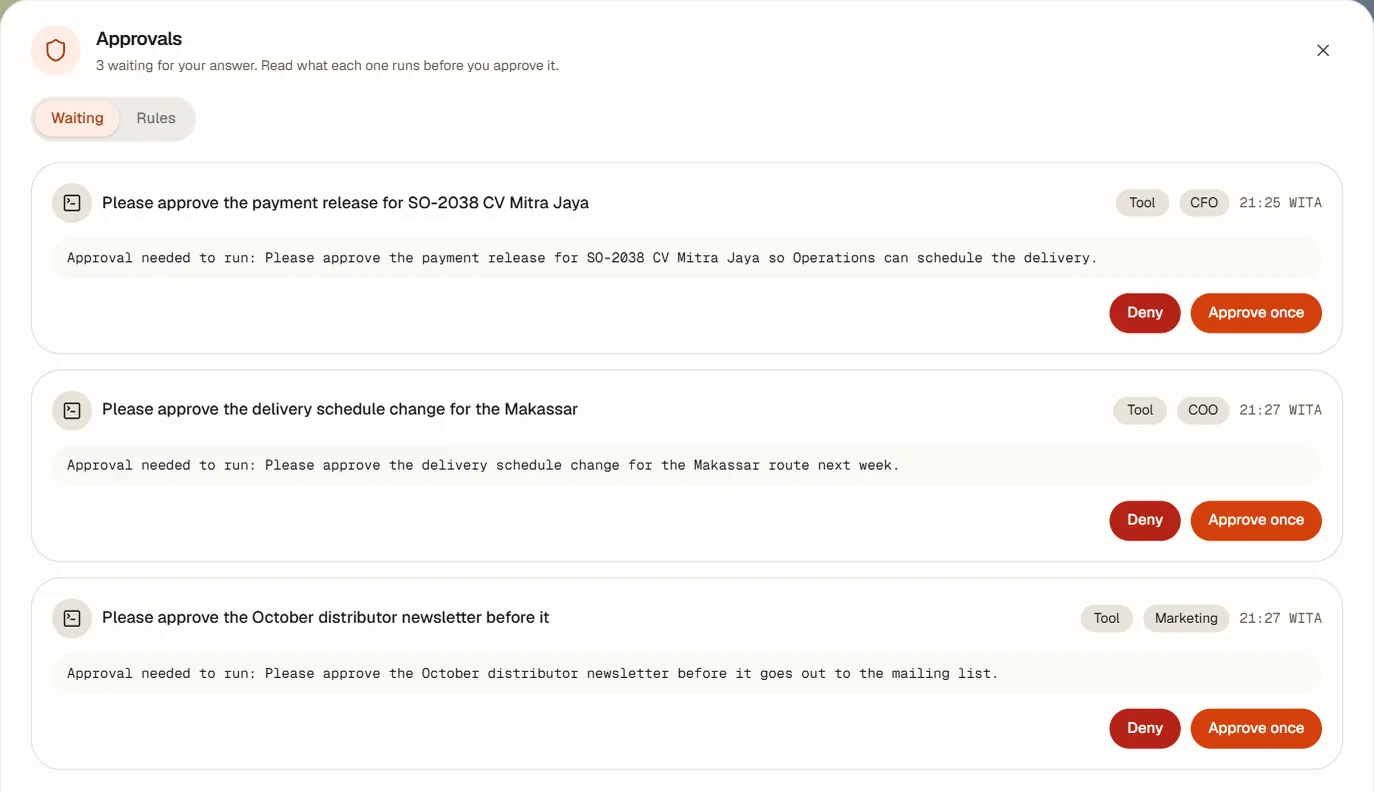
Everything that needs a human answer, oldest first: a tool an agent wants to run, a run paused for a decision, a workflow step, an email or Instagram draft, a connector call. The note above the list counts them and tells you to read what each one runs before approving it. With nothing pending it says No approvals waiting.
Each card shows:
- The title of the request.
- Where it came from: Tool, Office request or Workflow step.
- Which agent asked, or the office, and the office-local time.
- The command or description itself in a monospace block, exactly as it will run, with secrets already blanked. If nothing was sent it says No details were sent with this request.
- Pictures you can enlarge, and a player for a video.
- When it will give up: Denied automatically at HH:MM if nobody answers.
The buttons are Approve once and Deny (a workflow step says Approve and Reject, and some requests carry their own wording such as Allow once and Refuse). Where a draft can be revised there is also Request changes, which requires What should change? before Send changes. Denying an office draft offers Why not? (optional), and that reason reaches the agent. Every decision records who made it.
Who may answer. A workflow's human step can be decided by a member. Tool approvals, run approvals, and the office's own drafts — email, Instagram, beta onboarding, connector calls — can only be answered by the owner or an admin.
Approving from Telegram
When a request opens, the office also sends it to every owner and admin on the channel each has marked Preferred in Settings → People. On Telegram the message carries the text, the first picture or document where there is one, and buttons: Approve, Deny, and where they apply Request changes and Open in office.
- Each Approve or Deny link is a one-time credential, minted for one approver, one request and one answer.
- Opening it shows a confirmation page and decides nothing — that is deliberate, so Telegram's own link preview cannot answer on your behalf. The button on that page is what decides.
- A link stops working once it is used, once the request is answered anywhere, when it expires, or if the office restarts. The buttons inside the office keep working.
- The log records that the answer came from Telegram, and who gave it.
- Telegram is sent the connector and tool names and the names of the arguments — never their values. To read the full request, open it in the office.
Holding the link is the credential. Anyone with that Telegram chat can answer as you, so treat it like the approver's phone. If delivery fails, nothing is lost: the request still waits in the office.
Rules
Everything asks by default. The Rules tab is where you loosen that, deliberately, one line at a time. Anyone signed in can read the rules; only the owner and admins can change them, and a change saves immediately (a failed save rolls back and tells you).
Office actions
Each row is one of the office's own actions, with Ask and Run without asking. On Ask the row reads "Waits in Approvals until you answer."
| Action | On Run without asking |
|---|---|
| Send a new email | A new email goes out as soon as an agent writes it. |
| Reply to an email | Replies go out at once: up to 10 an hour, never to newsletters or automated mail. |
| Post to Instagram | Posts, Reels and Stories are published as soon as an agent prepares them. |
| Reply to an Instagram comment | Only short thank-yous the agent marks as simple — no link, no @mention, no number — go out at once. Every other reply still waits. |
| Hide an Instagram comment | Comments are hidden as soon as an agent decides to. |
| Delete an Instagram comment | Comments are deleted as soon as an agent decides to. |
| Accept and set up a beta tester | Accepting, setting up and inviting a tester happens without waiting for you. |
Connectors
Below the actions, one card per connector you have installed. The office's own tools are not listed, because they enforce their own rules. With none installed it says No connectors installed yet. Connect an app and its tools get their own rules here. Anyone who may change settings also sees an Open Settings → Integrations button there.
| Connector mode | What it means |
|---|---|
| All tools ask | Every call waits for you. |
| Only changes ask | Read-only tools run; anything that changes something waits. |
| Nothing asks | Every tool of this connector runs without asking. |
Expanding the card's tool list gives each tool its own Ask or Free, which wins over the connector's mode. Each tool carries a badge: Read, Read (says the connector), Write, or Write, not seen yet.
An app connected from the catalog starts on Only changes ask. A server you added yourself starts on All tools ask and says so: Custom connector: every tool asks until you change it.
"Read-only" is the connector's own word. A tool counts as read-only because the connector claims it is, and the office cannot verify that claim. A tool that is listed but has never been called counts as a write. If a connector holds something you cannot afford to have changed, use All tools ask rather than trusting the badge.
The connector list and the tool names are live, not a fixed catalogue: they are whatever your connectors actually offer, so this page cannot list them for you. Open the tab and read the cards. The rules hold up to 128 connectors and 512 tool overrides each.
What the agent sees while it waits
This differs by the kind of approval, and the difference is worth understanding.
A command the agent runs
Shell commands are not held for approval: agents run commands without asking you first. Your approvals cover the office's own actions and connector tools (Approvals → Rules). On an office with the sandbox, commands run in a separate container that holds no keys, so a command cannot read the office's secrets or other agents' connector tokens.
A connector tool
Here the call is not held open. The agent is stopped at once and told, in so many words: "Waiting for the owner's approval (…) before <server>.<tool> runs. Stop here; the office will tell you when to repeat it." Then:
- If you approve, the office mints a one-use permission for exactly that agent, connector, tool and set of arguments, valid up to an hour, and quietly asks the agent to repeat that one call. Matching it uses the permission up.
- If you deny, the agent is told not to try again and to tell whoever asked what was not done — with your reason if you gave one.
- If nobody answers, the request expires after 24 hours and the agent is told it did not run and not to retry unless a person asks.
- If it tries again while waiting, it is refused with "Still waiting for the owner's approval (…). Do not call it again; you will be told."
Because the permission is tied to the exact arguments, an approval cannot be reused for a different call. Pending connector requests and permissions live in memory, so an office restart drops them and the agent has to ask again.
An office draft
An email or Instagram draft does not block the agent at all: the draft is filed and the agent carries on. Your answer, when it comes, is what sends, publishes or revises it.
What approvals are not. They are a prompt and a brake, not a sandbox. An agent you have given terminal access could in principle reach a connector's key by other means. Approvals are there so nothing goes out without you noticing; containment comes from not giving an agent capabilities it does not need.
Security model
Sign-in and sessions
- Everyone signs in with their own username and password. There is no unauthenticated path for a browser, not even on the machine itself.
- Passwords are 10 to 200 characters, with no complexity rule, hashed with Argon2id. A wrong username and a wrong password answer identically, and an unknown username still does the same work, so it cannot be probed by timing.
- 10 failed attempts within 15 minutes stop further tries for that username and that address; a success clears the count.
- One live session per account. Signing in again replaces the older session, and the old device is told why — replaced, signed out, revoked, disabled, expired, or the password was changed — naming the new device where it can.
- A session lasts 30 days, sliding as you use it. Its cookie is HttpOnly, same-site, and only sent over HTTPS on an HTTPS office. Only a hash of the token is stored.
- A reset link is valid 24 hours, works once, replaces the person's other sessions, and a new link cancels the old one. There is no reset email; an admin copies the link to you.
What actually protects you
- Every route is checked on the server. Each one declares the permission it needs, and a route that declares nothing is owner-only by default. Hiding a button in the UI is convenience; the refusal happens underneath.
- Your role is read fresh on every request, so a role change or a removal takes effect on the next click, not at the next sign-in.
- A state-changing request from a browser must come from the office's own origin, and only configured origins may call the API from elsewhere.
- Requests are rate-limited per session or address.
- Admins cannot touch the owner, cannot touch another admin unless the owner does it, cannot make admins, and cannot change their own role, disable their own login or remove themselves. The owner cannot be removed or disabled, only replaced through a transfer.
- Agents of one office share a sandbox. Their commands run in a separate container that holds none of the office's secrets, but every agent uses the same user and the same workspace there, so one agent can read or change another agent's files. Give an agent only data you are willing to share with the other agents of that office.
Secrets and redaction
- Secrets are write-only. No route reads a secret value back. Settings will tell you whether a key is set, never what it is. A tool that sets a secret returns only the key's name.
- The arguments of the office's own sensitive tools — settings, platform credentials, integrations, email — are dropped from the activity record entirely, not merely hidden in the UI.
-
Before anything reaches a monitor, the office strips bearer tokens, basic-auth values, credentials inside URLs,
curl -uarguments, password and token flags, secret-looking fields and environment variables, and the common key shapes, then caps the length. - A connector approval card replaces secret-looking keys and values with [hidden] before you see them, and clips the rest.
- Mailbox app passwords, the Instagram app secret and machine private keys live inside your office's AI engine and are never returned to the office.
Machine access
A deployment can hold an API token for scripts and automation. It acts as the owner, is sent as an HTTP header, and is not a browser session: it is not replaced by someone signing in and has no session end reason. It may be passed in the address only for the few things that cannot set a header — the live stream, the play channel and file downloads. Browsers never need it.
What stays human by design
A few things no agent can do, however much access you give it: stopping a run, approving a dangerous command, scanning a WhatsApp pairing code, and push-to-talk. Owner-level operations — secrets, connectors, restarting the gateway, platform credentials, model settings, firing an agent — come with full access, which your CEO has and every other agent you hire does not. Only you can switch full access on, or tick an owner-level permission by hand; an admin can narrow an agent but not widen one, and no agent can give either to itself or to a colleague.
Settings
"Manage your office, team, AI models and connected channels." Settings needs admin or owner; the technical sections sit behind an Advanced group that warns: "For technical setup. Changes here can stop your agents."
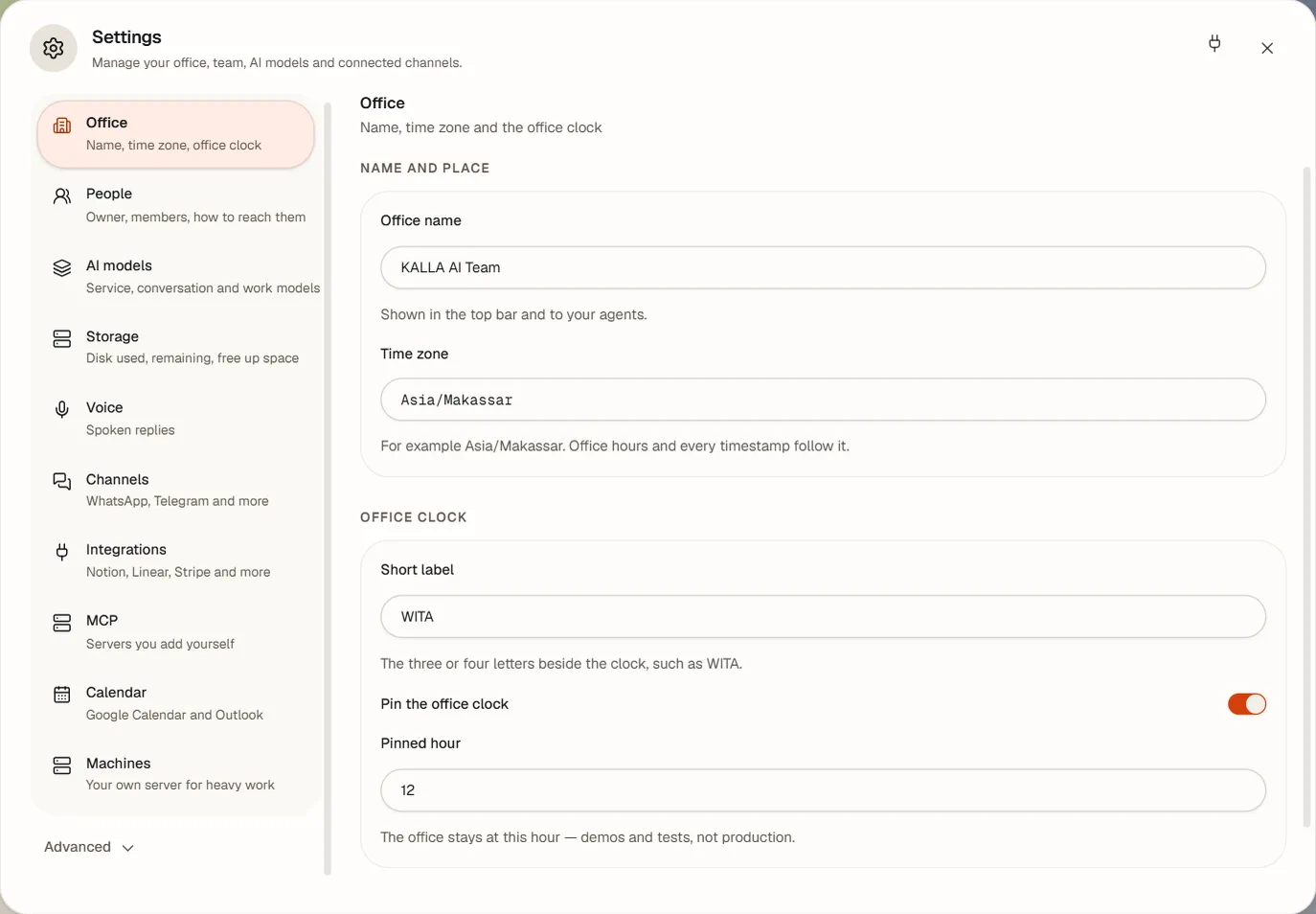
| Section | What it does |
|---|---|
| Office | Office name, Time zone, a Short label for it, and Pin the office clock with a Pinned hour if you want the lighting fixed. Then Save office. |
| People | The humans: profiles, how agents address them, languages, messaging contacts, appearance, desks, logins and roles. See People. |
| AI models | The AI service, an optional base URL, the conversation and work models, Refresh models, 30-day usage, and the fixed decision model. |
| Storage | What you are using against your plan, with Measure now, per-file deletion, Delete old sessions and Upgrade storage where offered. |
| Voice | The voice provider and its catalogue, with Preview with, a Line and Preview. Assigning a voice is per agent, in the agent dialog. |
| Channels | A door to the Messaging panel: Open Messaging. |
| Integrations | The app catalog, plus the guided Email and Instagram dialogs. See Connectors. |
| MCP | Servers you add yourself, by URL or command, with their agent scope and write-only secrets. |
| Calendar | The one-way secret subscription address for Google Calendar and Outlook, with Copy and Rotate. |
| Machines | Your own servers over SSH. See Machines. |
| Advanced → Agent system | The health of the AI engine and its gateway, their addresses, version and configuration warnings, and Restart gateway. |
| Advanced → Skills | The skill library. See The skill library. |
| Advanced → Secrets | Add and remove write-only keys. Existing values are never shown. |
| Advanced → Logs | Recent engine logs, filtered by Log level and Log component. |
Plans and beta
A plan sets three ceilings: how many agents, how many people, and how much storage your office has. The live numbers and prices are on the home page, in rupiah or dollars, and they come from a table we maintain — this page deliberately does not copy them, so it cannot go stale. Prices at launch may change.
- Storage is enforced as you go: an upload is refused before a byte is written when you are at the limit, and the Artifacts and Storage panels show what is using the space.
- The agent ceiling is also a hard floor in the product: no office holds more than 19 agents, whatever the plan says, because agents and people share 20 desks.
- An Enterprise-shaped plan has no fixed ceilings or price and is negotiated.
The beta. The home page takes a waitlist signup, with I want to be a beta tester when seats are available and a live count of how many are left. When the seats run out the badge says Full and your signup still joins the ordinary waitlist rather than being thrown away. A beta signup starts as pending; we accept testers by hand. Beta testers are free until the official launch, and get a notice with the commercial terms before anything changes.
There is no public self-service signup yet, and no general free trial. See the status list for everything that is honestly not finished.