FAQ and troubleshooting
The questions people actually ask, and the checks that fix the things that actually break — in the order worth trying.
About the product
Is any of this a mockup?
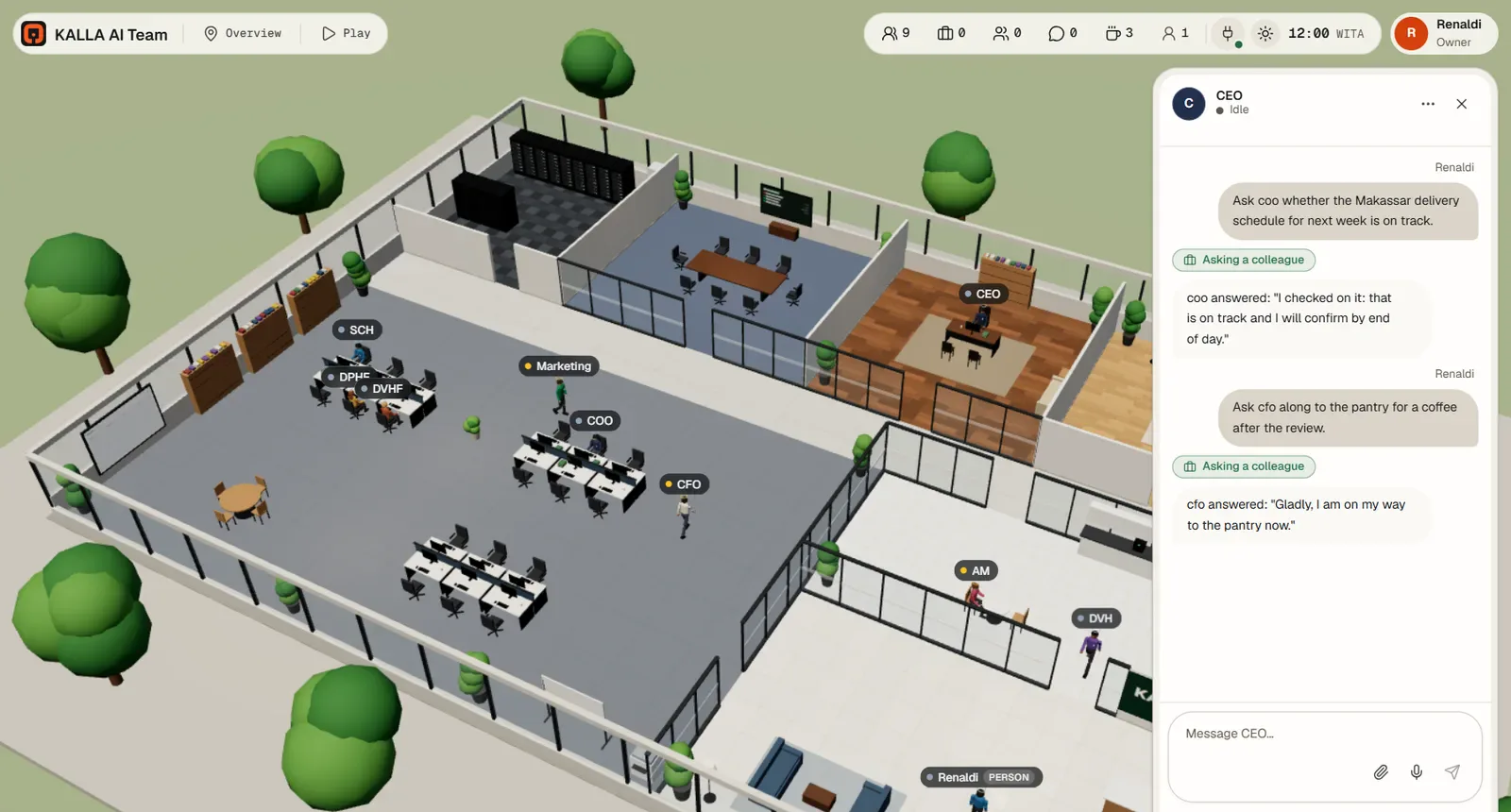
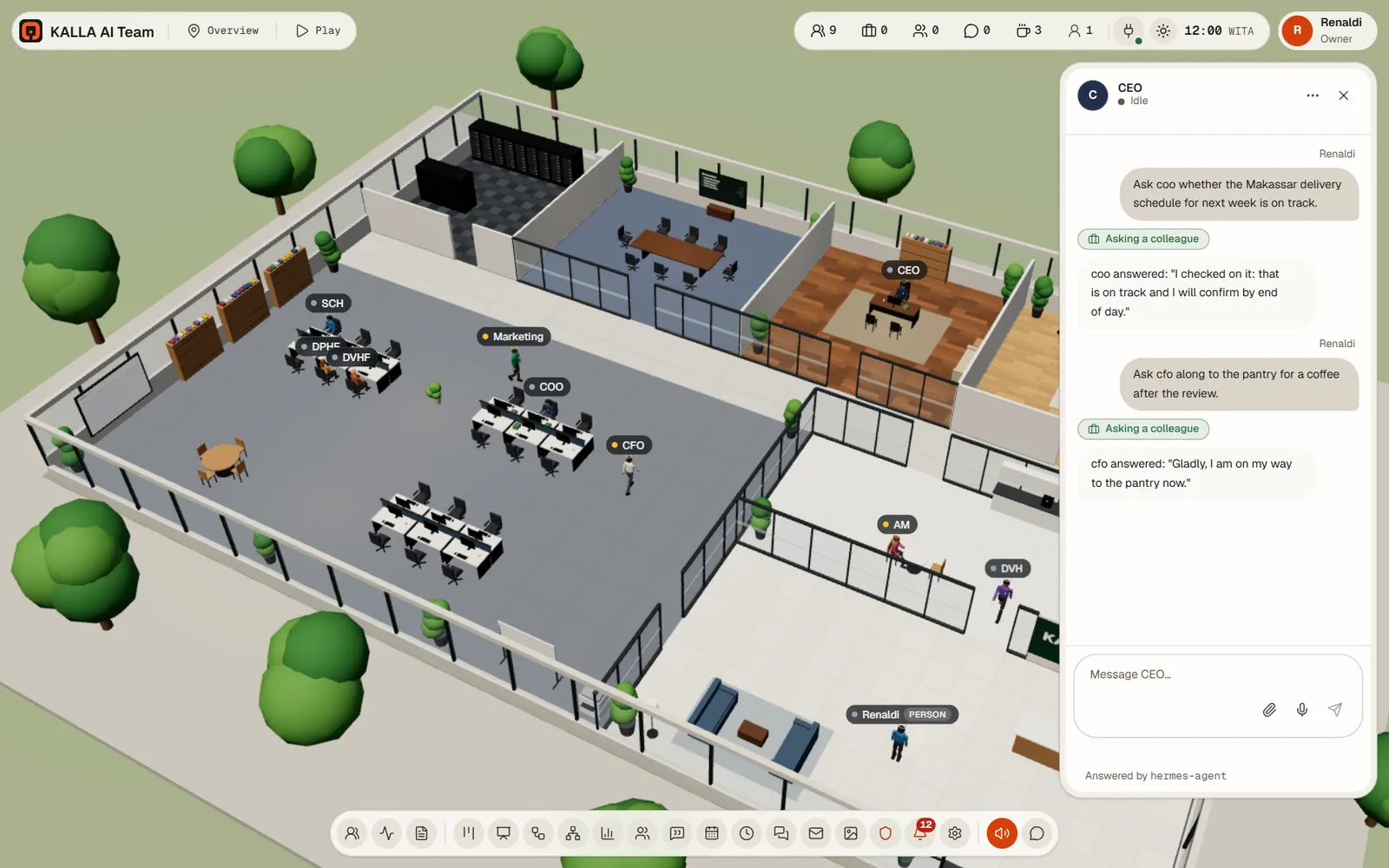
No. Every character at a desk is a real AI agent, and what you see on a monitor is what that agent is really running. If a screen shows a terminal, that command ran. If an agent walks to a colleague, it is because it asked that colleague something and the colleague's own run answered.
Can I sign up today?
Not yet. Officeverse is in limited beta: the home page takes a waitlist signup, and a beta-tester tick box while seats are available. We accept testers by hand. Beta testers are free until the official launch and get the commercial terms in writing before anything changes.
Do I need my own AI account?
A hosted office arrives with a working AI service already connected, so your agents think from the first minute. If you already pay for an AI provider, you can point the office at your own account in Settings → AI models, or through the Connect your AI wizard. See Connect your AI.
How many agents and people can I have?
Your plan sets the ceilings, and the product has a hard limit of 19 agents: agents and people share 20 desks and one is always kept free. People and storage limits come from your plan; the live numbers are on the home page.
Does it need a powerful computer?
It needs a browser with working WebGL for the 3D view. If you have reduce motion turned on in your operating system, the landing page shows a still image instead of the animation.
Is there a mobile app?
No. The office is a browser application. What works well on a phone is the parts that come to you: approvals on Telegram with Approve and Deny buttons, and talking to an agent through a Telegram bot or WhatsApp.
Agents and work
What is the difference between a routine, a card and a workflow?
- A card is one piece of work for one agent. Put it in Ready and someone starts it.
- A routine is work that repeats on a schedule, owned by one agent.
- A workflow is several steps in order, with approvals and notifications between them. Its task steps become cards.
How do I stop an agent doing something?
Three levers, from gentle to firm. Authority in its Role tab tells it what it may not decide alone. Approvals → Rules decides what waits for your yes. And removing an Office capability or a connector takes the ability away entirely. To stop an agent altogether, Suspend it: it keeps everything but takes no new work.
Can agents see each other's chats and files?
A chat thread belongs to one agent and is shared among the people in the office, not among agents. Agents learn things from each other by asking: one agent calls another, the colleague's own run answers, and that answer is spoken. Files you attach go into that one agent's workspace.
Why did an agent refuse to do what I asked?
Usually one of four reasons, and the Inspector's Why will tell you which: it has reached its monthly token budget, its authority says that decision is not its to make, it lacks the capability or the connector, or it is waiting for an approval. Suspended agents refuse everything until resumed.
Can I edit what an agent remembers?
Yes. Team → edit the agent → Memory. You can edit an entry, forget one, or teach it something new with Teach it something. Memory has a budget, and when it is full the office says so rather than quietly dropping older facts.
What happens to work if I fire an agent?
Its profile, memory and routines are deleted and its direct reports move to its manager. The office refuses to fire an agent that still has live work, so finish or reassign that first. It cannot be undone. If you only want it to stop, use Suspend.
Data, privacy and limits
Who can see what?
Four roles: owner, admin, member and viewer. The server checks the role on every request, so hiding a button is only convenience. The table is in What each role may do.
Are my API keys and passwords safe?
Secrets are write-only: no route reads a value back, Settings only tells you whether a key is set, and a tool that sets one returns only its name. Mailbox app passwords, the Instagram app secret and machine private keys live inside your office's AI engine and are never returned to the office. Before anything reaches a monitor, the office strips tokens, basic-auth values, credentials in URLs, password flags and the common key shapes.
Can an agent read a file it should not?
The office refuses to read anything outside that agent's own workspace, including paths that climb out of it, environment files, auth files, configuration, databases, sessions and token folders. The real exposure to think about is a linked machine, where an agent can run any command its Linux user can.
How long is history kept?
The panels keep working windows rather than an archive: the newest 80 activity entries and 80 decisions in the drawer, 200 decisions in detail, the last 30 finished meetings and 50 closed action items, the newest 300 artifacts in the panel with the rest still listable, and 30 days of model usage. A KPI holds its current window only — its little trend line is just what your browser tab has seen since you opened it. For anything you need to keep, have an agent write a report or save an artifact.
Does my data go anywhere else?
Your office's data stays in your office. What leaves is what has to: prompts and replies to your AI provider, a message to WhatsApp or Telegram when an agent sends one, mail to your mail provider, a post to Instagram when you approve it, and whatever a connector you installed does. The calendar feed publishes your events to whoever holds its secret address.
An agent is not answering
Work down this list; it is roughly in order of likelihood.
- Is an AI connected? Look for the banner in the top bar. If the chat says to connect your AI first, that is the whole problem: press Connect and finish the wizard.
- Is the agent suspended? Select it: a suspended agent takes no new work. Press Resume in the Inspector or the agent dialog.
- Is it waiting for you? A label reading Waiting for you and a raised hand means an approval is pending. Open Approvals → Waiting. Office actions and connector tools wait there for your answer; shell commands do not, agents run them without asking (with the sandbox, in a separate container with no keys).
- Has it hit its token budget? The Inspector shows this month's usage. A capped agent refuses new runs and the office raises a notification. Raise or clear Monthly tokens in its Model tab.
- Is it busy? Check Current run in the Inspector and the queue count. An agent in a meeting, a run or a conversation finishes that first.
- Is your provider failing? Open Settings → AI models and check the model is still available; run the wizard's test again. Activity log → Office will carry an error line if runs are failing.
- Is the office connected? The top bar shows the connection state, and the Activity log header reads Live or Offline. Reload the page.
- Are you a viewer? Viewers can read but not write — the composer says Viewers can read, not write. Ask an admin to change your role.
A model key is refused
The wizard shows the provider's own reason. The common ones:
| What it says | What to do |
|---|---|
| The key is wrong or unauthorised | Re-copy it from the provider's dashboard — a trailing space or a truncated paste is the usual culprit. The field is masked, so you cannot see the mistake; paste it again rather than editing it. |
| No credit, quota or billing | Add credit or a payment method at the provider. The office cannot work around an unpaid account. |
| Unknown model | Leave Model empty to take the provider's default, or copy the exact model id from the provider's own documentation. Then press Refresh models in Settings → AI models. |
| Cannot reach it | For a custom provider, check the Base URL is reachable from where your office runs, not just from your laptop. A local model server on your own machine is not reachable from a hosted office. |
- A provider that uses a sign-in rather than a key will not accept a pasted key.
- Changing the provider or the models can need a gateway restart; Settings → Advanced → Agent system has Restart gateway.
- Only an owner or admin can see or change any of this.
A connector test fails
A failed test changes nothing: the connector stays connected, scoped and enabled. It is telling you something, not breaking something.
- Read the sentence. A catalog app answers It answered. or No answer. with the detail from the app itself; a custom server shows its own message, or Reachable / No detail when it says nothing. The detail is the real clue.
- Restart if a banner asks. A connector added or rescoped but not yet live shows "Restart to start using the latest change". Press Restart now.
- Check the credential. Open Manage and type the key again. Secrets are write-only, so a wrong value looks identical to a right one. For a custom server, the editor lists which secret names are stored.
-
Check it is reachable. A URL like
http://127.0.0.1:…means "on the office's own machine", which is not your laptop. A company service behind a firewall must be reachable from where the office runs. - Check the scope. A test runs from the first agent the connector is scoped to. If you scoped it to one agent and that agent has a problem, the test reflects that agent.
- Check the app's own side. For a sign-in connector, the token may have expired or been revoked where you granted it. Press Connect again and sign in; each agent keeps its own sign-in, so you may need Sign in the next one for the others.
- If a save did not reach every agent, the office tells you which profiles it missed and that saving again retries them. Press save again.
If the agent can reach the connector but every call waits, that is not a failure — that is Approvals → Rules. A server you added by hand starts on All tools ask.
An approval is not arriving on Telegram
The request itself is never lost: it waits in Approvals regardless. What follows is about the delivery.
- Is a Telegram bot connected? Messaging → Channels. Without a bot there is nothing to send with, and the office will say to connect one in Messaging to get approvals with the picture on Telegram.
- Does your person have a Telegram id, marked preferred? Settings → People → your own person. The contact must be Enabled and Preferred. This is the single most common cause.
-
Is the id the right thing? Telegram needs a numeric user id, not an
@username. Message@userinfobotin Telegram and it replies with yours. - Have you ever messaged the bot? Telegram does not let a bot start a conversation with someone who has never written to it. Open the bot and send it anything once.
- Are you an owner or an admin? Office approvals are sent to owners and admins. A member sees workflow steps in the office but is not an approver for tool, email, Instagram or connector requests.
- Is the picture missing but the text arriving? Sending media needs the notify add-on; without it the message is text and a link. The dialog says so, with an install option.
- Did the link stop working? That is by design. Each Approve or Deny link is one-time, bound to one approver, one request and one answer, and dies when it is used, when the request is answered anywhere else, when it expires, or if the office restarts. Open the request in the office instead.
- Did pressing the link do nothing? It is meant to show a confirmation page first — opening a link never decides, so that Telegram's own link preview cannot answer for you. Press the button on that page.
Treat that chat as the approver's phone. Anyone holding those links can answer as you. Telegram is deliberately sent the tool name and the names of its arguments but never their values; to read the whole request, open it in the office.
The WhatsApp code will not work
- Expired? The code expired — start again means exactly that: these codes are short-lived. Ask for a new one and scan it promptly.
- Scanning with the right phone? It must be the phone that owns the number which will answer, through WhatsApp's own linked devices screen — not a camera app and not a different phone.
- Stuck at "Getting your code ready"? The office is waiting on the gateway. Give it a moment, then close and reopen the dialog. If it never arrives, check Settings → Advanced → Agent system for the gateway's health.
- Pairing failed? Start again. If it fails repeatedly, check the channel row in Channels: press Test and read the reason.
- Linked, but nobody gets answered? Three things to check: the channel's Enabled switch; whether Allowed numbers is set and excludes the person writing (empty means anyone may write); and whether an assignment points at an agent — Messaging → Assignment. A new contact may also be sitting in Requests waiting for you to approve them.
- Changed credentials but nothing changed? A channel already running keeps its old credentials until messaging restarts. Look for Saved, but not live yet or restart pending, and press Restart messaging.
Scanning a pairing code is deliberately a human job: no agent can do it for you, however much capability you give it.
Email will not connect
- Use an app password. Gmail, Microsoft 365 and Zoho refuse the normal account password. A refused login says so and reminds you.
- Read both test lines. Test connection answers once for reading and once for sending. One can pass while the other fails, and that narrows it immediately — a reading failure is IMAP, a sending failure is SMTP.
- Check the host, port and security against the preset for your provider. Microsoft's sending port uses STARTTLS, not TLS, which catches people out when they fill it in by hand.
- Microsoft tenants can switch password sign-in off. If your administrator has done that, the test will report the login was refused and there is nothing to fix on this side; OAuth is not part of this version.
- Is the add-on installed? Email is not set up yet means the add-on that holds mailbox passwords is missing. Install it from the card, then add the mailbox.
- No new mail being announced? The office checks every 5 minutes, and the first check after adding a mailbox only learns what is already there. A failing check shows "New mail could not be checked" with the reason, and backs off up to an hour.
- Agents say the mailbox is not theirs? Tick them under Who may use this mailbox. Up to 16 agents per mailbox, 20 mailboxes per office.
- Replies not going out? Check Approvals → Waiting — drafts wait by default — and Rules. On Run without asking, replies are still capped at 10 per mailbox per hour and never sent to automated mail. A draft nobody answers expires after 24 hours.
Instagram will not sign in
- Is your office on https? If not, the dialog says plainly that Instagram cannot sign in to it or fetch your pictures. Use your office's public https address.
- Is the redirect address in the Meta app? Step 4 of the setup shows an address with a Copy button; it must be pasted into the app's Valid OAuth redirect URIs exactly.
- Is your Instagram a professional account, and not private? Step 1 covers both; Meta refuses the rest otherwise.
- Did you accept the Tester invite? Adding the role in the Meta app is only half of step 3; you must also accept it inside Instagram.
- Window blocked? The dialog offers to open it for you. If it closed before you approved, it says so and nothing was saved — press the button again.
- Sign-in ran out? Tokens expire. The dialog says to connect again; press Connect again.
- Nothing posting? Check Who manages Instagram has at least one agent, and look in Approvals — everything asks by default, so drafts may simply be waiting for you. A draft expires after 24 hours.
- Comments not appearing? The last 10 posts are checked every 5 minutes; the first check only learns what is there. Check now looks immediately, and a failure shows the reason.
A machine will not connect
-
Did you paste the commands as the right user? Copy commands must run as the Linux user
you named, so the key lands in that user's
~/.ssh/authorized_keys. Running them twice is safe. - Is the address right? A hostname or an IPv4 address. IPv6 is not supported.
- Is the port open from where your office runs, not just from your own network?
- Host key changed? The office refuses to log in and warns that a different machine may be answering. If you rebuilt the server, press Trust the new key, confirm, and test again. If you did not rebuild it, do not trust it — find out why the key changed.
- Cannot assign agents? A machine needs one successful test first. Up to 20 machines per office, and one machine per agent — assigning an agent elsewhere moves it off the previous machine.
- Agent cannot install software? It can only install what its Linux user may. Install the runtime and tools yourself, or give that user the right permissions deliberately.
- Removed a machine? Its agents go back to working inside the office and the key pair is deleted. Remove that public-key line from the server's
authorized_keysyourself.
A card is stuck
- Nothing picks it up. Cards start when they are in Ready. To do and Triage are parking lanes, so move it to Ready.
- You cannot drag it into Running. That is deliberate — the tooltip says your team picks these up by itself and to drop the card into Ready instead.
- Worker stopped. The card says so and offers Retry (release the claim and ask for a fresh start) and Mark blocked.
- It is blocked. Open the card: Detail carries the block reason, and Comments usually carries the question the agent is waiting on. Answer it there.
- You cannot see it. The board defaults to This week. Switch the filter to This month or a Date range.
- You need the gory detail. Owners and admins get a Technical details tab with the task id, the workflow run, the worker's process and its output, with Refresh.
- You want to reassign it. There is currently no control for that after creation: create the card again with the right assignee and archive the old one.
A meeting has no minutes
The office will not invent a summary. If the host's minutes run failed, the meeting is marked No minutes and History offers Retry minutes. Press it. If it fails again, check whether your AI provider is healthy — the minutes run uses the work model.
Other meeting oddities:
- It ended early. A meeting is capped at 30 member turns and 30 minutes, by design.
- The chair cannot close it. The required phases and participation must be done first.
- You cannot add a seventh attendee. The limit is the host plus one to five members. Run two meetings instead.
- You cannot change a booked meeting's host. Cancel it and book it again.
- An action item has the wrong owner or date. The panel changes status only. Create the work as a card with the right owner.
The calendar feed is empty or stale
- It updates slowly. Google and Outlook refresh subscribed calendars on their own schedule — usually every few hours, sometimes up to a day. Nothing you do in the office speeds that up.
- It is one-way. Changes you make in Google or Outlook never come back to the office.
- It needs to be reachable. Google and Outlook must be able to fetch from your office, so the feed needs a public https address.
- A wrong address returns nothing. Copy it again from Settings → Calendar, in full.
- A routine is missing from the view. Paused routines are left out, and so is anything firing more than 24 times a day. A six-field cron expression (with seconds) may also not project as you expect; use five fields if the calendar view matters.
- You think the address leaked. Press Rotate. The old address stops working immediately, and you re-subscribe with the new one.
Storage is full
An upload is refused before a single byte is written, with a message telling you to delete old versions or upgrade. The top bar also shows a banner with Free up space.
- Open Settings → Storage and press Measure now to see what is actually using it.
- Delete old artifact versions in Artifacts — the panel shows what each one costs. Space is freed immediately.
- Remember that archived artifacts still use their space until they are deleted.
- Use Delete old sessions to clear old conversation data.
- If you genuinely need more room, Upgrade storage where that is offered.
Sign-in problems
- "You were signed out because your account signed in on another device." Working as intended: one live session per account, and the newest wins. Sign in again — but if it was not you, change your password and tell your owner.
- Too many attempts. Ten failures in fifteen minutes stops further tries for a while. Wait, then use a reset link rather than guessing again.
- Forgot your password. There is no reset email. Ask the owner or an admin for a reset link from Settings → People; it lasts 24 hours and works once.
- "Login disabled". An admin disabled it. Re-enabling keeps your old password.
- A reset link does not work. It may already have been used, expired, or been replaced by a newer one. Ask for a fresh link.
- The first-run form asks for a token. That is a self-hosted office on a network address protecting itself from a stranger claiming it. Use the operator's setup link, or paste the office API token under I run this office myself.
Where to look when nothing else helps
| Where | What it tells you |
|---|---|
| Inspector → Why | What this agent is doing and what caused it. Start here. |
| Inspector → View monitor | The agent's real tool calls, with input and output, secrets removed. |
| Activity log → Office | Every run, tool call, conversation and board move in plain words, including errors. |
| Activity log → Raw events | The underlying stream, filtered by work, board, messages or waiting. |
| Activity log → Decisions | What the decision model was asked, what it answered, and how sure it was. |
| Approvals → Waiting | Whether something is simply waiting for a human. |
| Settings → Advanced → Agent system | The health of the AI engine and its gateway, and Restart gateway. |
| Settings → Advanced → Logs | Recent engine logs, by level and component. |
Two habits that solve most mysteries: read the Why before guessing, and check Approvals before assuming something is broken. A great deal of "it stopped working" is the office doing exactly what you asked and waiting for your yes.